
6 Tagging
Overview
Tags consist of a tag name and a tag value.
When tagging entities, you can use just the name or pair it with a value (for example, mysql, jira, target:mysql, service:jira, etc.).
Tags can be defined for various entities:
- Templates
- Hosts
- Items
- Web scenarios
- Triggers
- Services
- Template items and triggers
- Host, item, and trigger prototypes
Refer to the official Zabbix guidelines for general recommendations on defining tags, along with specific guidance for templates, items, triggers, and low-level discovery rules.
Tags have multiple purposes, most notably, to mark events. When entities are tagged, any new event related to a tagged entity will inherit its tags. For example:
- with tagged templates - any host problem (created by triggers from the template) will inherit the template tags;
- with tagged hosts - any host problem will inherit the host tags;
- with tagged items/web scenarios - any item/web scenario problem will inherit the item/web scenario tags;
- with tagged triggers - any problem created by the trigger will inherit the trigger tags.
A problem event inherits all tags from the whole chain of entities - templates, hosts, items/web scenarios, triggers.
Identical tag:value combinations (after resolved macros) are merged into one, thus avoiding duplication.
Custom event tags offer more flexibility. For example:
- event correlation can be configured based on event tags;
- action conditions can be configured based on event tags;
- item problems can be grouped based on event tags;
- problem tags can be used to map problems to services.
Entities may be tagged with the same tag name but different tag values (for example, component:memory and component:storage).
Similarly, an entity can have a tag without a value and the same tag with a value (for example, database and database:postgresql).
Such tags are not considered duplicates.
Use cases
Some common use cases for tagging are as follows:
-
Mark trigger events:
- Define a trigger tag (for example,
scope:performance). - Problems created by this trigger will have the trigger tag.
- Define a trigger tag (for example,
-
Mark template-inherited problems:
- Define a template tag (for example,
target:mysql). - Problems created by triggers from this template will have the template tag.
- Define a template tag (for example,
-
Mark host problems:
- Define a host tag (for example,
service:jira). - Problems created by triggers from this host will have the host tag.
- Define a host tag (for example,
-
Filter related items:
- Define an item tag (for example,
component:cpu). - In Monitoring → Latest data, items can be filtered by the
component:cputag.
- Define an item tag (for example,
-
Use information extracted from the item value as the tag value:
- Define a tag with a macro as the tag value (for example,
tag-name:{{ITEM.VALUE<N>}.regsub()}). - In Monitoring → Problems, problems will have the tag value resolved to the data extracted from the item value.
- Define a tag with a macro as the tag value (for example,
-
Identify problems in a log file and close them separately:
- Define a trigger tag for the log monitoring item trigger that will extract values from the item value using a macro (for example,
service:{{ITEM.VALUE<N>}.regsub()}). - In the trigger configuration, set up event correlation:
- set PROBLEM event generation mode to "Multiple";
- set OK event closes to "All problems if tag values match";
- set the tag for matching.
- Problems created by the log item trigger will have the trigger tag and will be closed individually.
- Define a trigger tag for the log monitoring item trigger that will extract values from the item value using a macro (for example,
-
Filter notifications:
- Define trigger tags (for example,
scope:securityfor trigger1 andscope:availabilityfor trigger2). - Use tag filtering in action conditions to receive notifications only on the events that match tag data.
- Define trigger tags (for example,
-
Identify problems in notifications:
- Define trigger tags.
- Use the {EVENT.TAGS} macro in the problem notification.
- The problem notification will contain the trigger tags, making it easier to identify which application/service the notification belongs to.
-
Simplify configuration tasks by using template tags:
- Define a template trigger tag.
- Triggers created from this template trigger will have its tag.
-
Create triggers with tags from low-level discovery (LLD):
- Define a trigger prototype tag with an LLD macro in the tag name or value (for example,
scope:{#FSNAME}). - Triggers created from the trigger prototype will have its tag.
- Define a trigger prototype tag with an LLD macro in the tag name or value (for example,
-
Match services using service tags:
- Define service tags.
- Configure service actions for services with matching tags.
- Additionally, use service tags to link a service to an SLA for SLA calculations.
-
Link services to problems using service problem tags:
- Define a problem tag in service configuration (for example,
target:mysql). - Problems with a matching tag will be automatically correlated to the service, and service status will change based on the configured service status calculation rules.
- Define a problem tag in service configuration (for example,
-
Suppress problems when a host is in maintenance mode:
- Define tags in maintenance period configuration.
- Problems with the defined tags will be suppressed.
-
Grant access to user groups:
- Define tags in user group configuration.
- Users in the user group will be able to view only problems with the defined tags.
Configuration
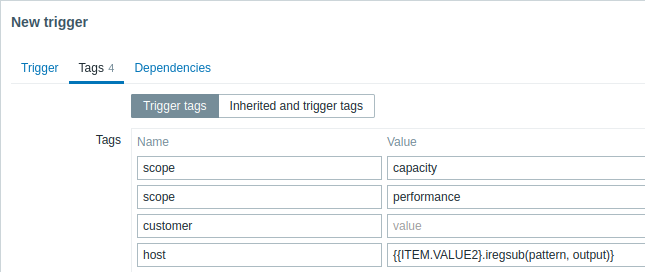
Tags can be defined in a dedicated tab, for example, in trigger configuration:
Macro support
Built-in and user macros in tags are resolved at the time of the event. Until the event has occurred, these macros will be shown in Zabbix frontend unresolved.
Low-level discovery macros are resolved during discovery process.
The following macros may be used in trigger tag names and values:
- {ITEM.VALUE}, {ITEM.VALUE.AGE}, {ITEM.VALUE.DATE}, {ITEM.VALUE.TIME}, {ITEM.VALUE.TIMESTAMP}, {ITEM.LASTVALUE}, {ITEM.LASTVALUE.AGE}, {ITEM.LASTVALUE.DATE}, {ITEM.LASTVALUE.TIME}, {ITEM.LASTVALUE.TIMESTAMP}, {HOST.HOST}, {HOST.NAME}, {HOST.CONN}, {HOST.DNS}, {HOST.IP}, {HOST.PORT}, and {HOST.ID} built-in macros
- {INVENTORY.*} built-in macros (for referencing host inventory values from one or several hosts in a trigger expression)
- User macros and user macros with context (the context may include low-level discovery macros)
- Low-level discovery macros (only in trigger prototype tags)
The following macros may be used in template, host, and item/web scenario tag names and values:
- {HOST.HOST}, {HOST.NAME}, {HOST.CONN}, {HOST.DNS}, {HOST.IP}, {HOST.PORT} and {HOST.ID} built-in macros
- {INVENTORY.*} built-in macros
- User macros
- Low-level discovery macros (only in host and item prototype tags)
The following macros may be used in trigger-based notifications:
- {EVENT.TAGS} and {EVENT.RECOVERY.TAGS} built-in macros (these macros will resolve to a comma-separated list of event tags or recovery event tags)
- {EVENT.TAGSJSON} and {EVENT.RECOVERY.TAGSJSON} built-in macros (these macros will resolve to a JSON array containing event tag objects or recovery event tag objects)
Substring extraction in trigger tags
Substring extraction is supported for populating the tag name or tag value, using a macro function. The function applies a regular expression to the value obtained by the supported macro. For example:
{{ITEM.VALUE}.regsub(pattern, output)}
{{ITEM.VALUE}.iregsub(pattern, output)}

{{#LLDMACRO}.regsub(pattern, output)}
{{#LLDMACRO}.iregsub(pattern, output)}
If the tag name or value exceeds 255 characters after macro resolution, it will be truncated to 255 characters.
See also: Using macro functions in low-level discovery macros for event tagging.
Viewing event tags
Tags, if defined, can be viewed with new events in:
- Monitoring → Problems
- Monitoring → Problems → Event details
- Dashboards → Problems widget
The order and number of displayed tags is determined by the Tag display priority and Show tags filtering options in Monitoring → Problems or the Problems dashboard widget. Note that a maximum of three tags can be displayed; if there are more tags, hovering over the three dots reveals all tags in a pop-up window.
