
1 Dashboard widgets
Overview
This section provides the details of parameters that are common for dashboard widgets.
Common parameters
The following parameters are common for every single widget:
| Name | Enter a widget name. |
| Refresh interval | Configure the default refresh interval. Default refresh intervals for widgets range from No refresh to 15 minutes depending on the type of the widget. For example: - No refresh for URL widget; - 1 minute for Action log widget; - 15 minutes for Clock widget. Refresh intervals can be set to a default value for all users. Switch the dashboard to editing mode, click the edit a widget button and select the desired refresh interval from the dropdown list. Each user can also set their own widget refresh interval. In dashboard viewing mode, click the three dots  button on a widget and select the desired refresh interval from the dropdown list. Note that a user's unique refresh interval takes priority over the widget setting and is preserved even when the widget's setting is modified. button on a widget and select the desired refresh interval from the dropdown list. Note that a user's unique refresh interval takes priority over the widget setting and is preserved even when the widget's setting is modified. |
| Show header | Mark the checkbox to permanently display the widget header. When unmarked, the header is hidden to save space and becomes visible only on widget mouseover (both in view and edit modes). The header is also semi-visible when dragging a widget to a new place. |
Specific parameters
To see specific parameters for each widget, go to individual widget pages:
- Action log
- Clock
- Discovery status
- Favorite graphs
- Favorite maps
- Gauge
- Geomap
- Graph
- Graph (classic)
- Graph prototype
- Honeycomb
- Host availability
- Host card
- Host navigator
- Item history
- Item navigator
- Item value
- Map
- Map navigation tree
- Pie chart
- Problem hosts
- Problems
- Problems by severity
- SLA report
- System information
- Top hosts
- Top items
- Top triggers
- Trigger overview
- URL
- Web monitoring
Dynamic parameters
Multiple widgets have parameters that enable them to share configuration data between other widgets or the dashboard.
Host groups, Hosts, Item, Item list
The Host groups, Hosts, Item, and Item list parameters allow selecting either the respective entities or a data source containing either host groups, hosts or items for which the widget can display data.
For Host groups, Item, and Item list parameters, the data source can be a compatible widget from the same dashboard.
For Hosts parameter, the data source can be a compatible widget from the same dashboard or the dashboard itself.
The Map widget can also broadcast host group and host data to compatible widgets. For more information, see Widget behavior.
Override host
The Override host parameter allows selecting a data source containing a host for which the widget can display data. The data source can be a compatible widget from the same dashboard or the dashboard itself.

-
To specify a compatible widget, enter its name and select it. Alternatively, click the Select button (or the dropdown button, then "Widget") to open a pop-up of available widgets.
-
To specify a dashboard, click the dropdown button, then "Dashboard". After saving the dashboard, the Host field (for selecting hosts) will appear at the top of the dashboard.

Time period
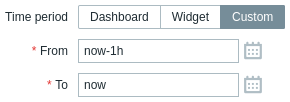
The Time period parameter allows selecting a data source containing a time period for which the widget can display data. The data source can be a compatible widget from the same dashboard, the dashboard itself, or the time period configured on the widget itself.
-
To specify a compatible widget, set Time period to "Widget", enter its name and select it. Alternatively, click the Select button to open a pop-up of available widgets.
-
To specify a dashboard, set Time period to "Dashboard". After saving the dashboard, the Time period selector will appear at the top of the dashboard.
-
To configure the time period on the widget itself, set Time period to "Custom" and enter or select the start and end of the time period.
Regardless of the widget's Time period configuration, compatible widgets can use it as a data source for the time period.
Widget behavior
Widgets differ in how they broadcast data to other widgets.
All widgets capable of broadcasting data begin doing so automatically upon creation. For example, the Graph widget immediately broadcasts time period data to listening widgets.
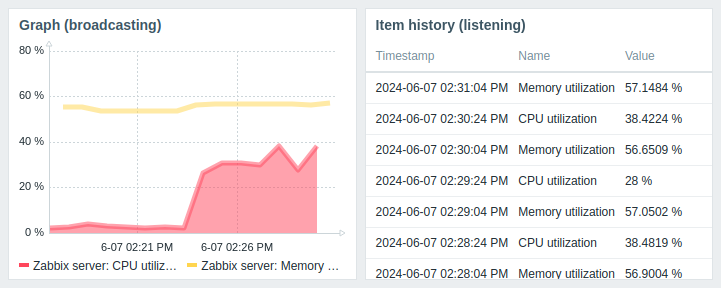
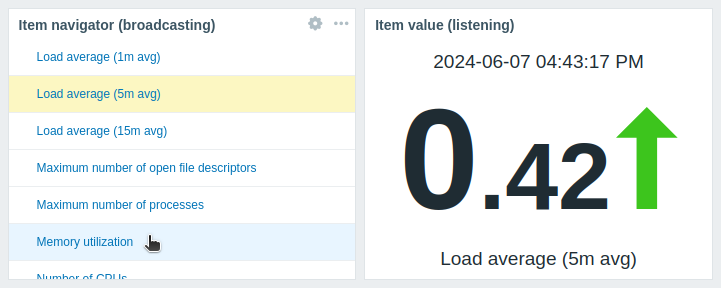
Widgets supporting entity selection (e.g., Item navigator) automatically broadcast data for the first available entity. For example, the Item navigator widget broadcasts data for the first item in its item list. When a different item is selected, it broadcasts data for that item. On mouseover, the item is highlighted in light blue color; on selection, it is highlighted in yellow color.
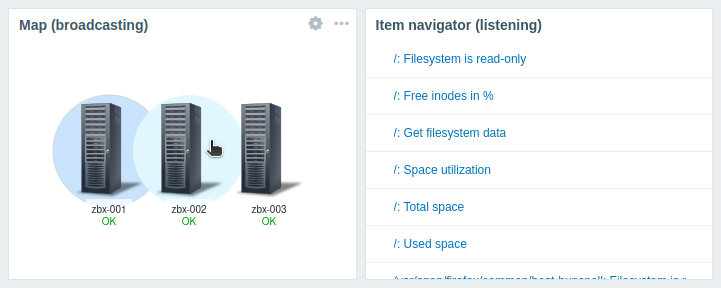
The Map widget also automatically broadcasts data for the first available element (e.g., host), which is closest to the top-left corner of the widget's viewport (for Geomap widget, closest to the center of the widget's viewport). When a different element is selected, it broadcasts data for that element. On mouseover, the element is highlighted in light blue color; on selection, it is highlighted in dark blue color.
Widgets also have specific behaviors when listening for data from other widgets:
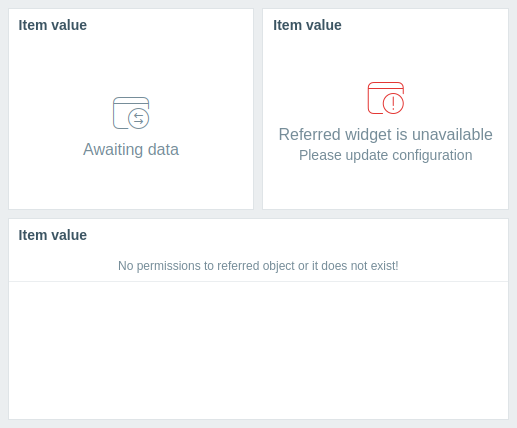
- If the data source widget is not broadcasting data, the listening widget enters the Awaiting data state.
- If the data source widget has been deleted, replaced with an incompatible widget, or moved to another dashboard page, the listening widget enters the Referred widget is unavailable state.
- If the specified host in the data source (widget or dashboard) lacks the entity configured in the listening widget (item, graph, map, etc.) or if the user lacks permissions to access the host, the listening widget displays the following message: "No permissions to referred object or it does not exist!"
For the broadcasting and listening capabilities of each widget, see Widget compatibility.
Widget compatibility
Some widgets can broadcast configuration data to other widgets, some can listen for data, and some can do both. For example:
- The Action log widget can only retrieve time period data from Graph, Graph (classic), and Graph prototype widgets.
- The Geomap widget can broadcast host data to widgets that listen for it (Honeycomb, Top items, etc.) and can also listen for host group and host data from widgets that broadcast it (Honeycomb, Problem hosts, etc.).
- The Clock widget cannot broadcast or listen for any data.
The following table outlines the broadcasting and listening capabilities of each widget.
| Widget | Broadcasts | Listens |
|---|---|---|
| Action log | - | Time period |
| Clock | - | - |
| Discovery status | - | - |
| Favorite graphs | - | - |
| Favorite maps | - | - |
| Gauge | - | Hosts, Items |
| Geomap | Hosts | Host groups, Hosts |
| Graph | Time period | Hosts, Items, Time period |
| Graph (classic) | Time period | Hosts, Items, Graphs, Time period |
| Graph prototype | Time period | Hosts, Time period |
| Honeycomb | Hosts, Items | Host groups, Hosts |
| Host availability | - | Host groups |
| Host card | - | Hosts |
| Host navigator | Hosts | Host groups |
| Item history | Items | Hosts, Time period |
| Item navigator | Items | Host groups, Hosts |
| Item value | - | Hosts, Items, Time period |
| Map | Host groups, Hosts | Maps |
| Map navigation tree | Maps | - |
| Pie chart | - | Items, Time period |
| Problem hosts | Host groups | Host groups, Hosts |
| Problems | Events | Host groups, Hosts |
| Problems by severity | Host groups | Host groups, Hosts |
| SLA report | - | - |
| System information | - | - |
| Top hosts | Hosts | Host groups, Hosts |
| Top items | - | Host groups, Hosts |
| Top triggers | - | Time period |
| Trigger overview | - | Host groups, Hosts |
| URL | - | Hosts |
| Web monitoring | Host groups | Host groups, Hosts |