
1 AWS deployment guide for Zabbix server
Overview
This page describes how to deploy Zabbix server using AWS.
Several Zabbix versions are available for deployment on the platform. Make sure to read the documentation for the same Zabbix version that you have deployed. Documentation for different Zabbix versions can be selected from the version dropdown menu.
Deploying the appliance
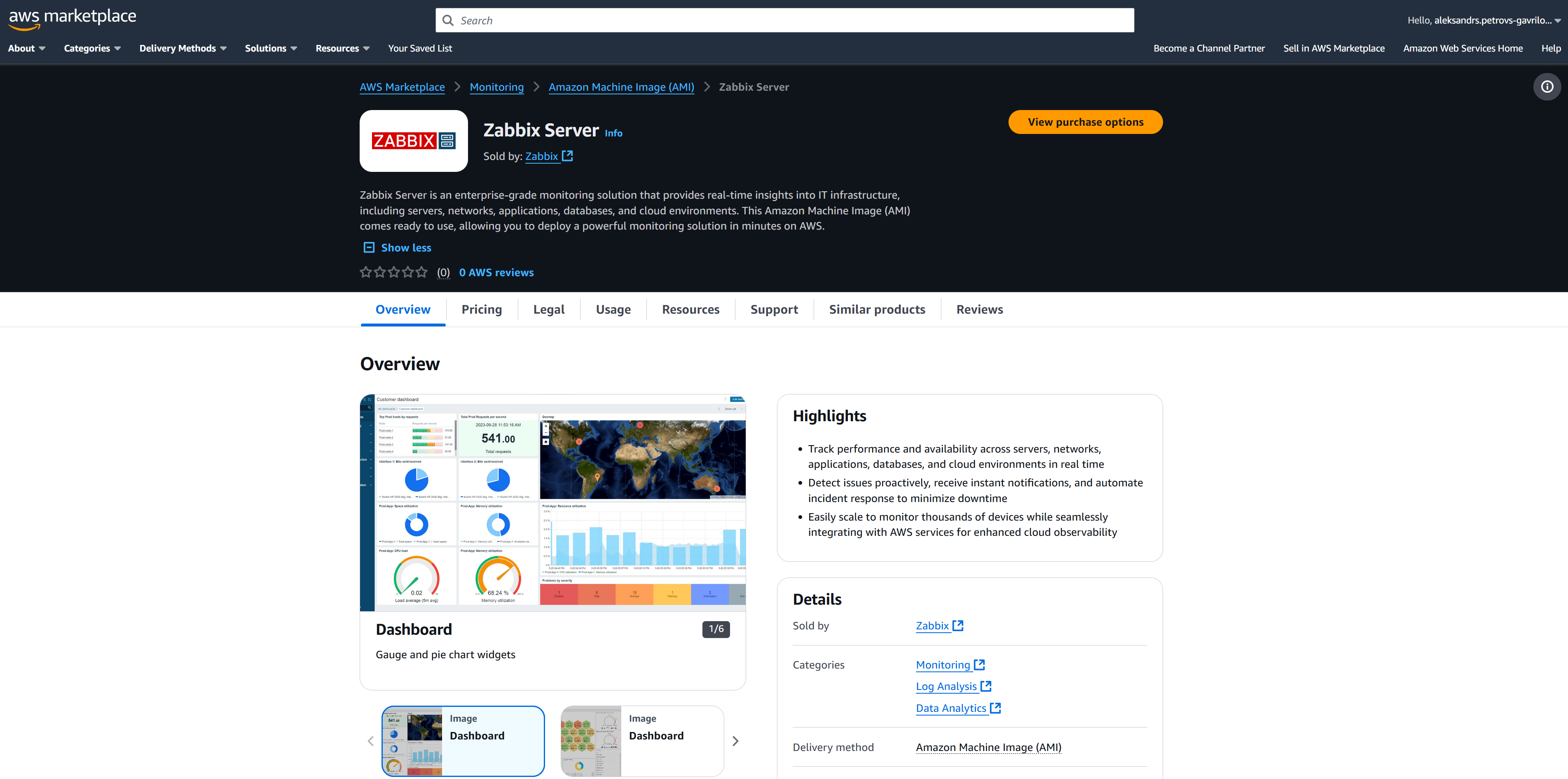
To deploy Zabbix appliance, first, let's navigate to the Zabbix AWS marketplace page. Next, click on the View purchase options to deploy the image and proceed to the subscription page.
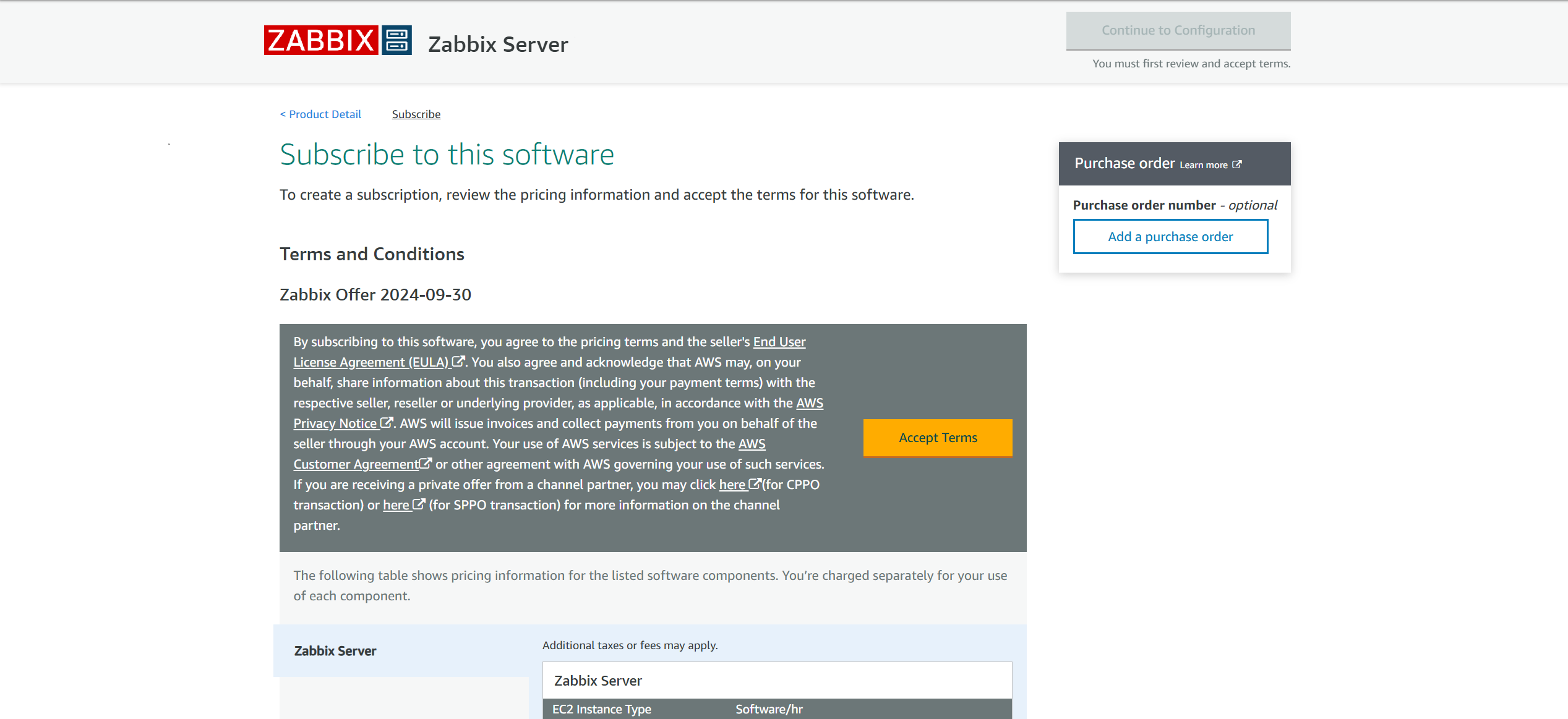
Click the Accept terms button to accept Terms and Conditions.
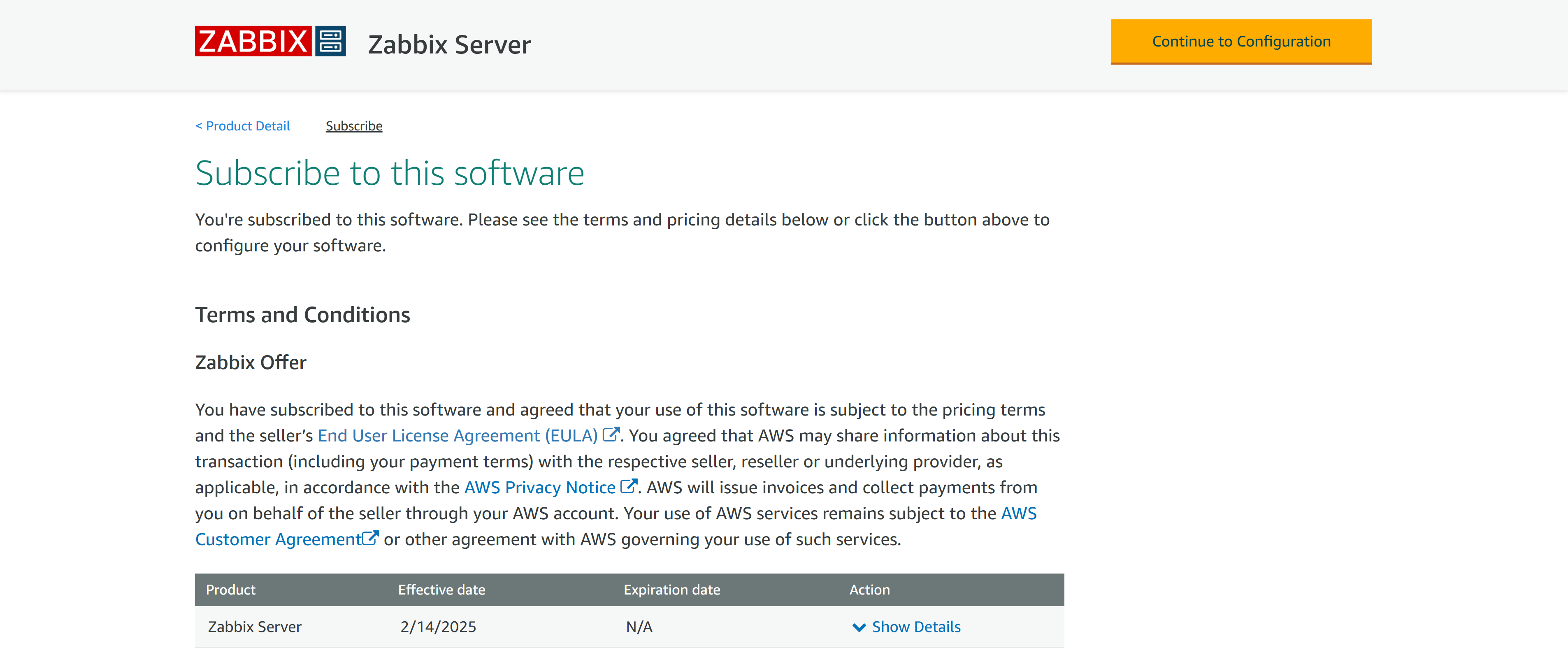
Click the Continue to Configuration button to move to the Configuration section for Zabbix appliance.
Select the Fulfilment option, Zabbix version, and your preferred Region.
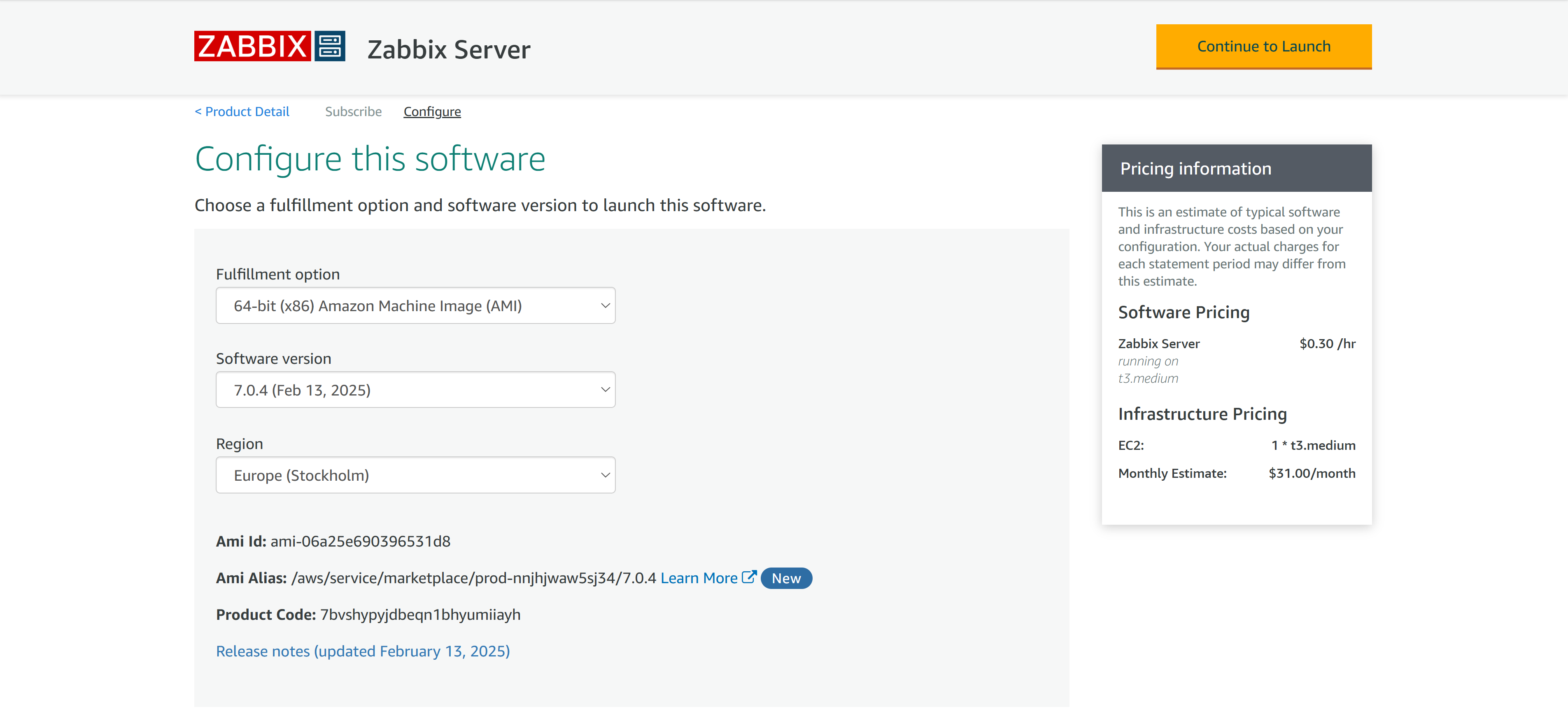
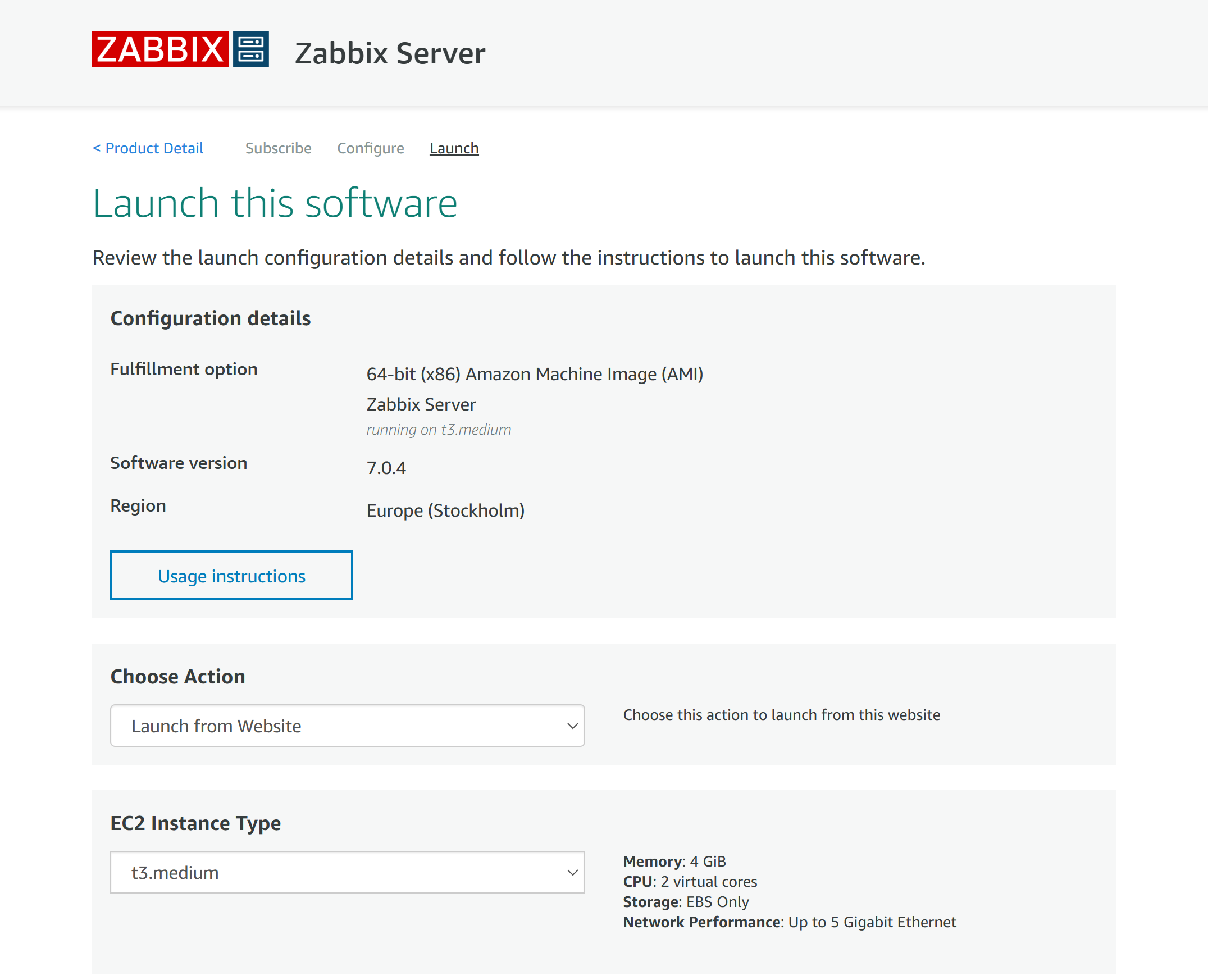
Click the Continue to Launch button. On the Launch page, select the preferred Launch option, EC2 Instance Type, VPC, and Subnet settings.
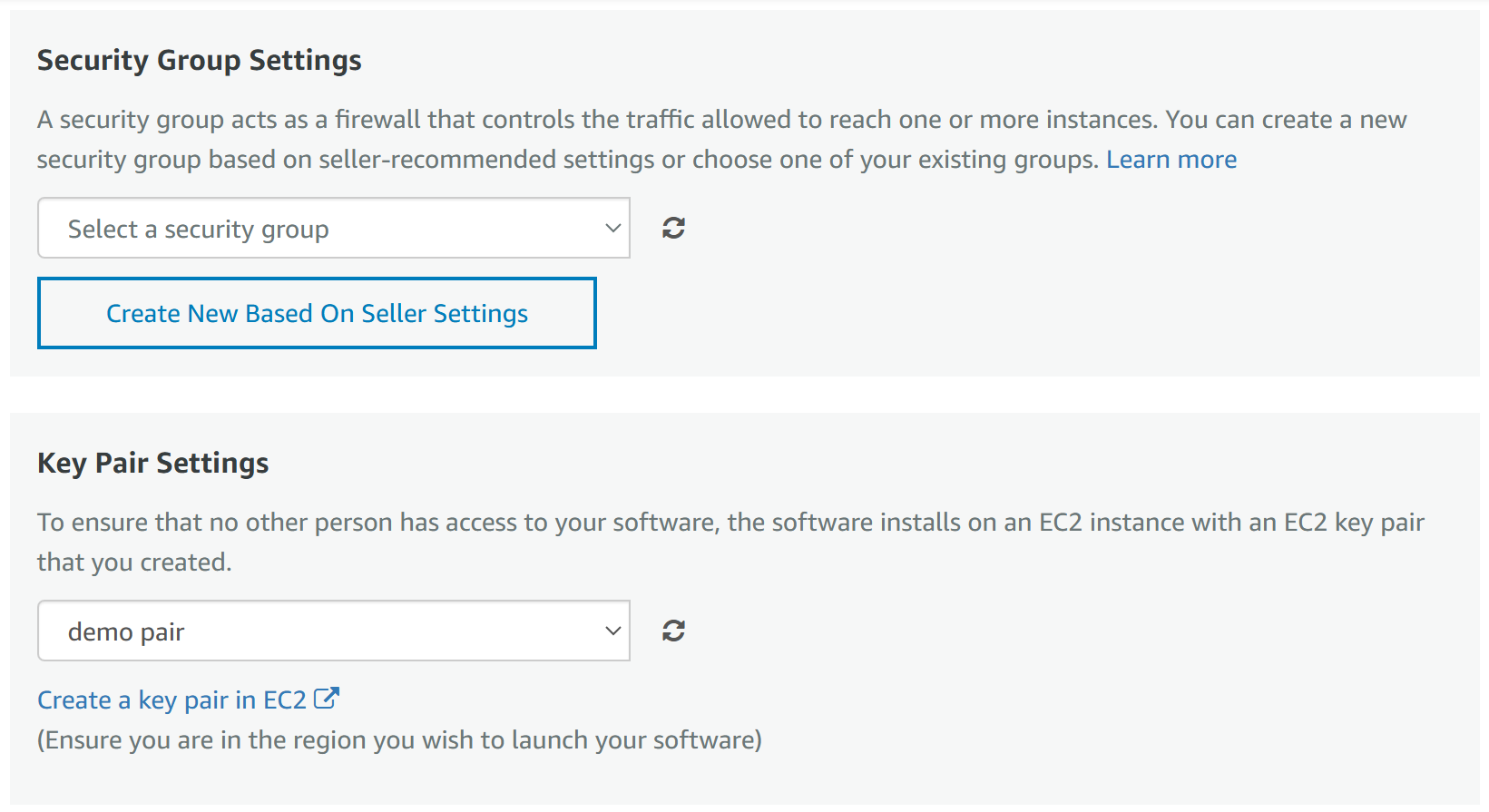
At the bottom of the Launch page, specify the Security Group settings and select or create an EC2 key pair - make sure to save your private key in a safe location!
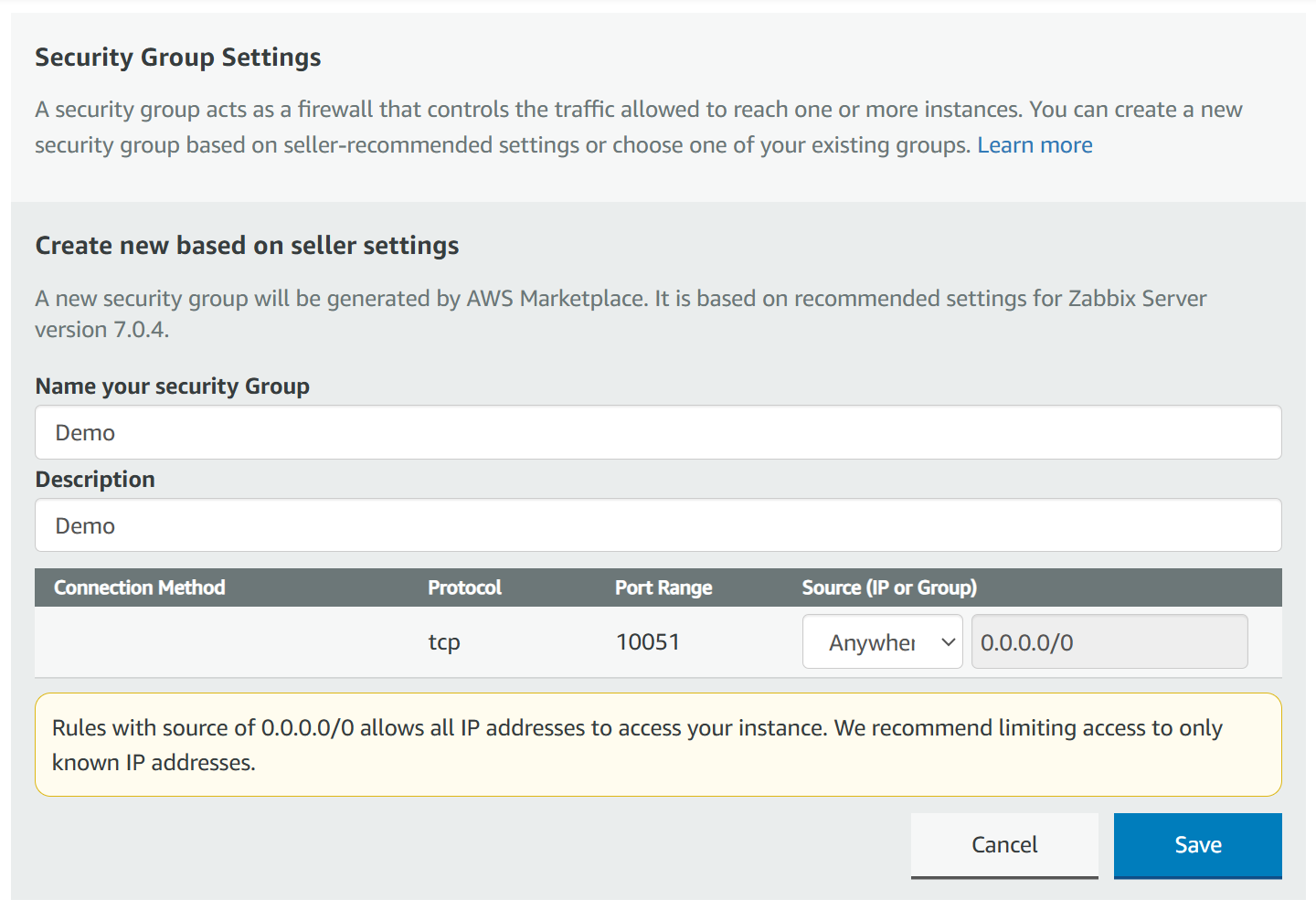
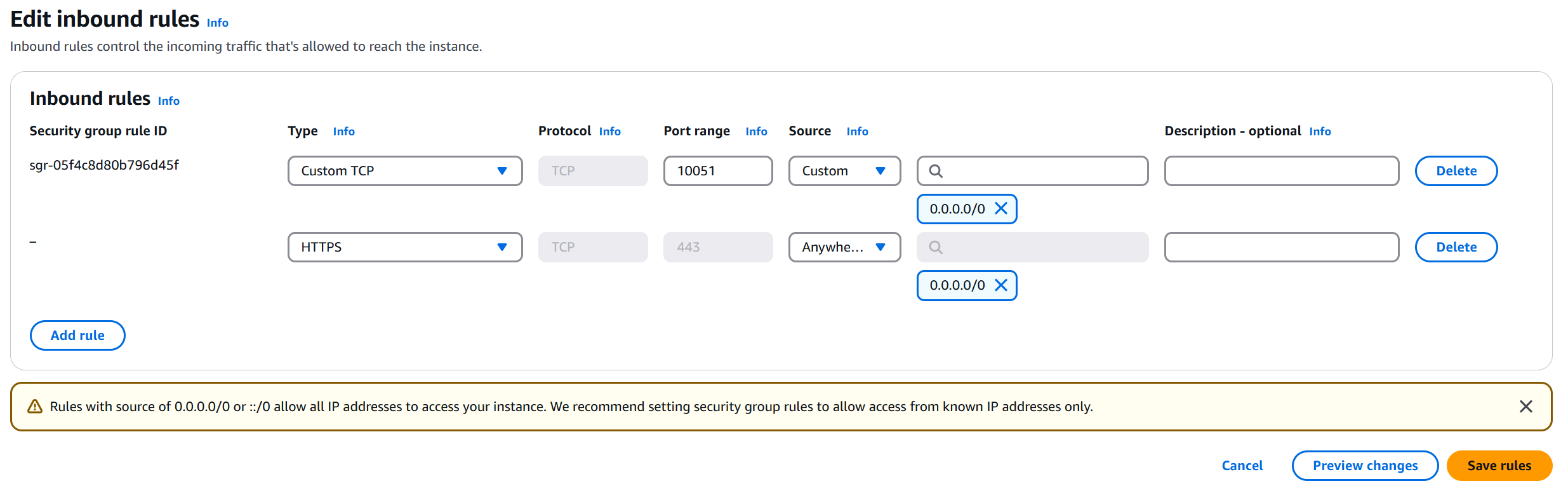
If you select Create a new Security Group based on seller settings, TCP port 10051 (Zabbix server) will be allowed. Note: If you wish to access the instance via SSH and HTTP/HTTPS (Web frontend), you will also need to permit SSH and HTTP/HTTPS connections in your Security Group settings.
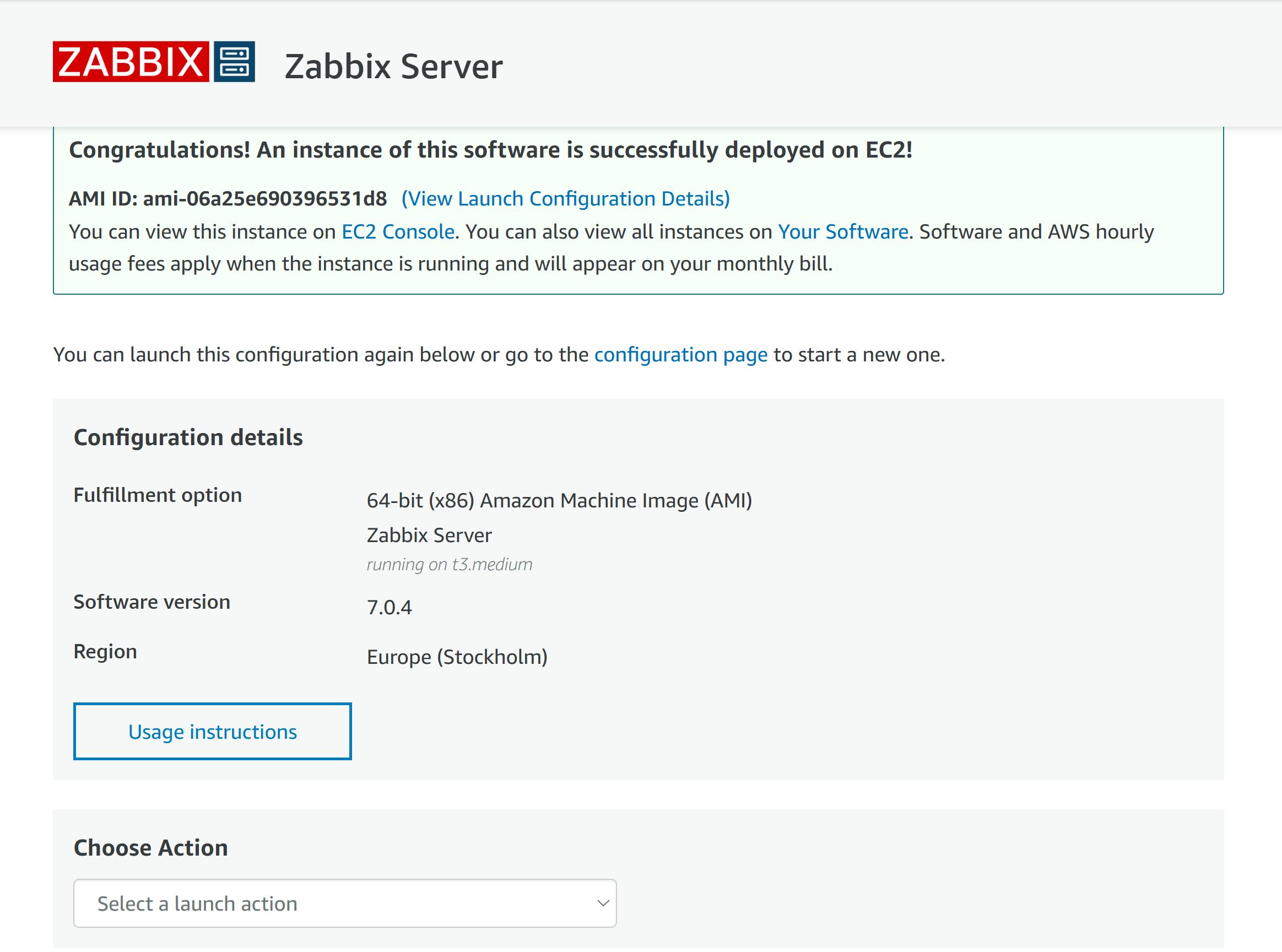
Congratulations, your Zabbix appliance has been successfully deployed.
Accessing the appliance
Open the Instances section and select the newly deployed Zabbix appliance instance.
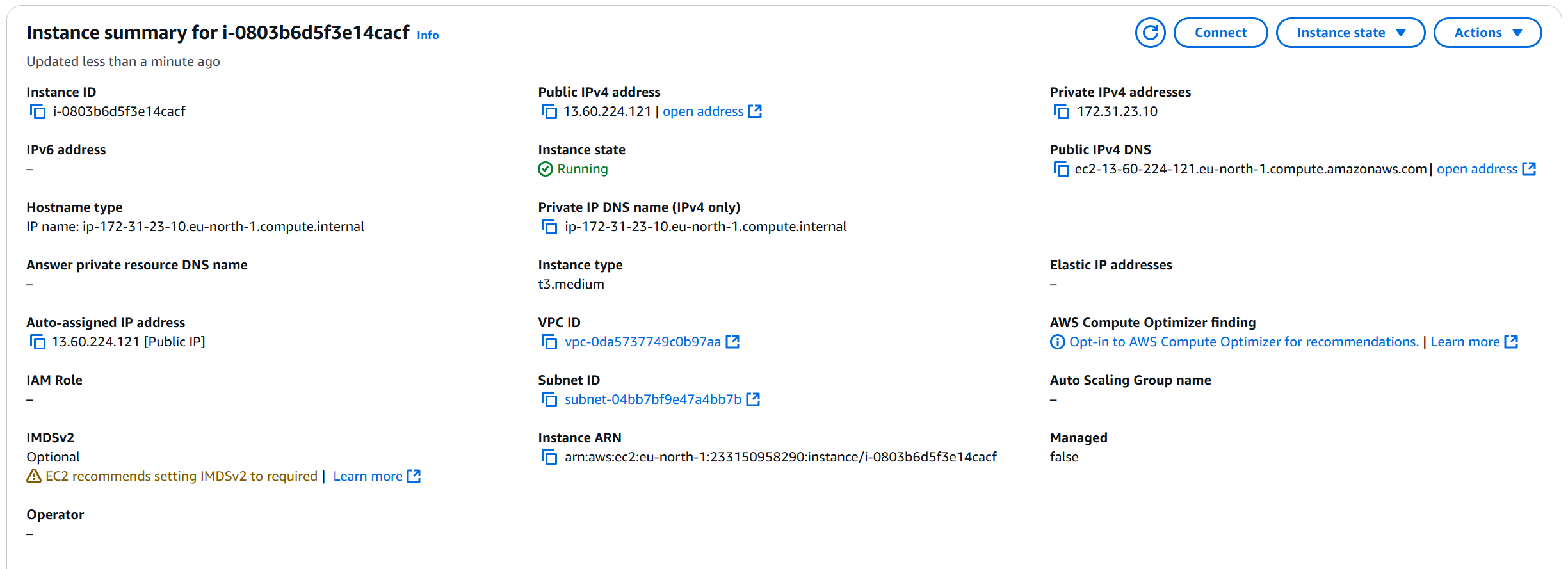
To access Zabbix frontend using the instance's Public IPv4 address or Public IPv4 DNS, allow inbound HTTPS traffic on port 443 in the Security Group.
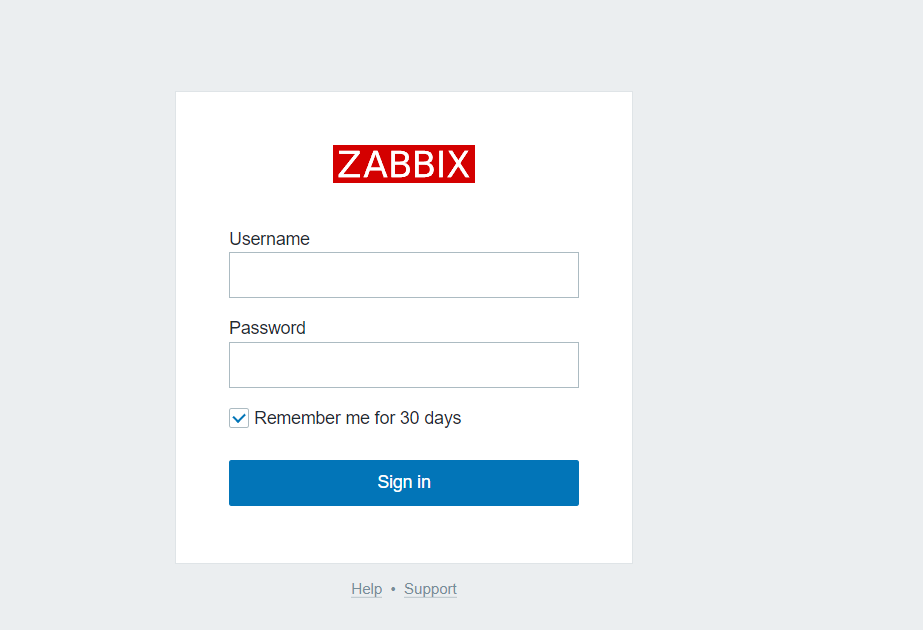
Now we can access Zabbix frontend by opening the Public IPv4 address or Public IPv4 DNS of Zabbix appliance.
To obtain the password, we need to connect to the machine either using the serial console or SSH. The default SSH username is rocky. Don’t forget to use the key pair you selected or generated previously. Please note that generating credentials may take time. Credential generation may take a few minutes. Wait a few minutes before attempting to connect.
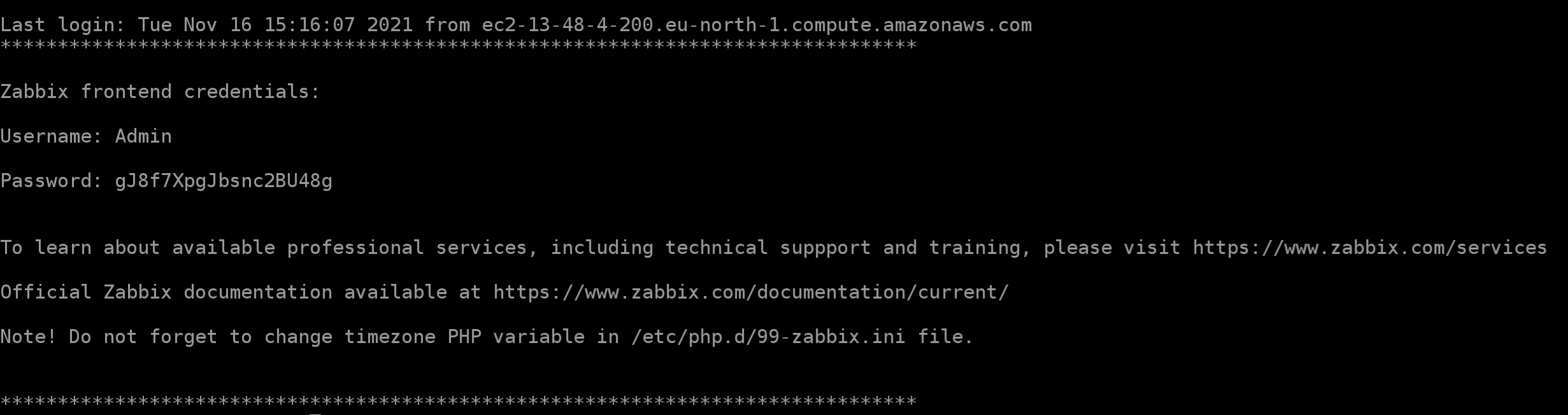
Now you can use this information to log in to your Zabbix frontend.
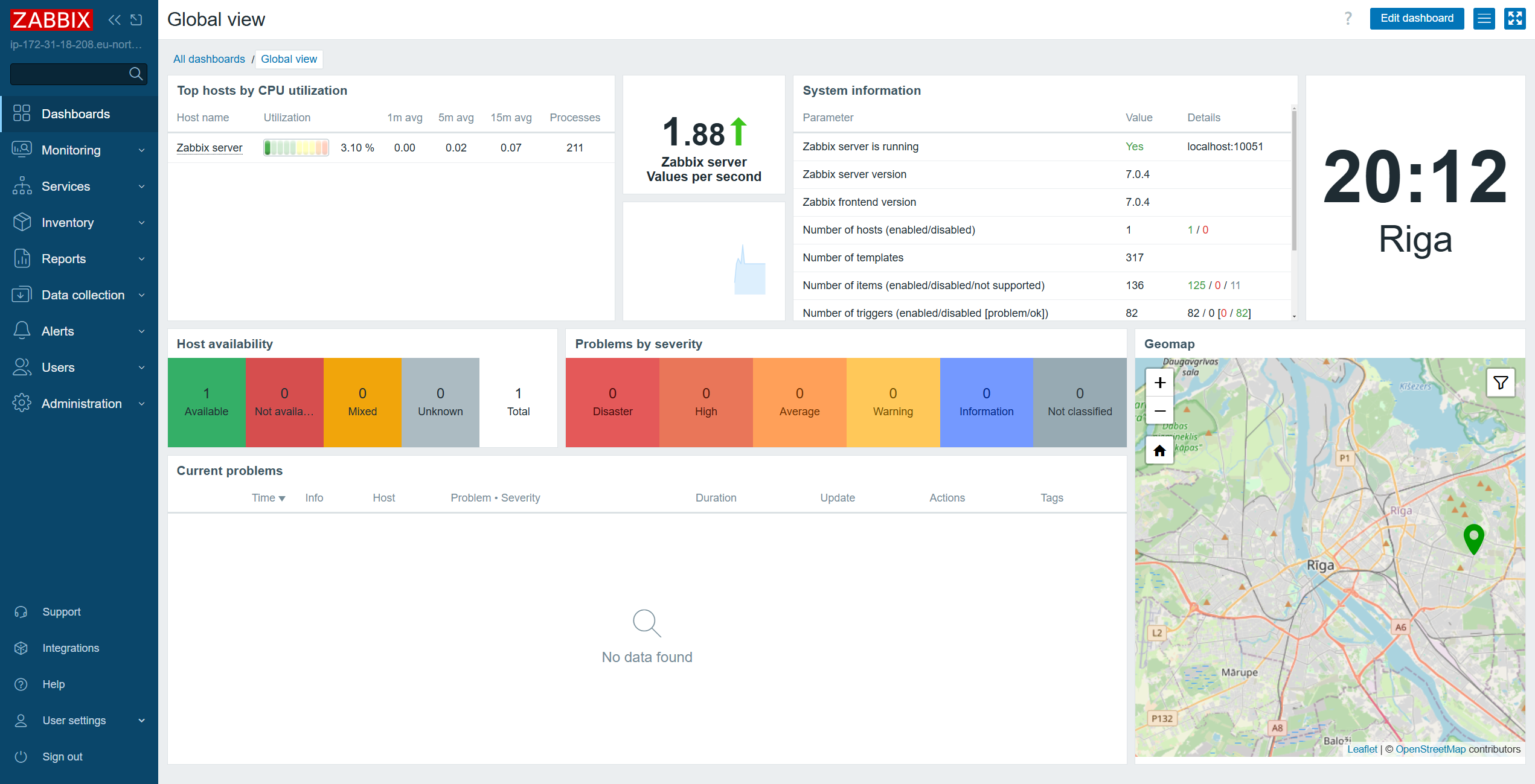
Accessing the Database
You can access Zabbix database using the root user without entering a password.
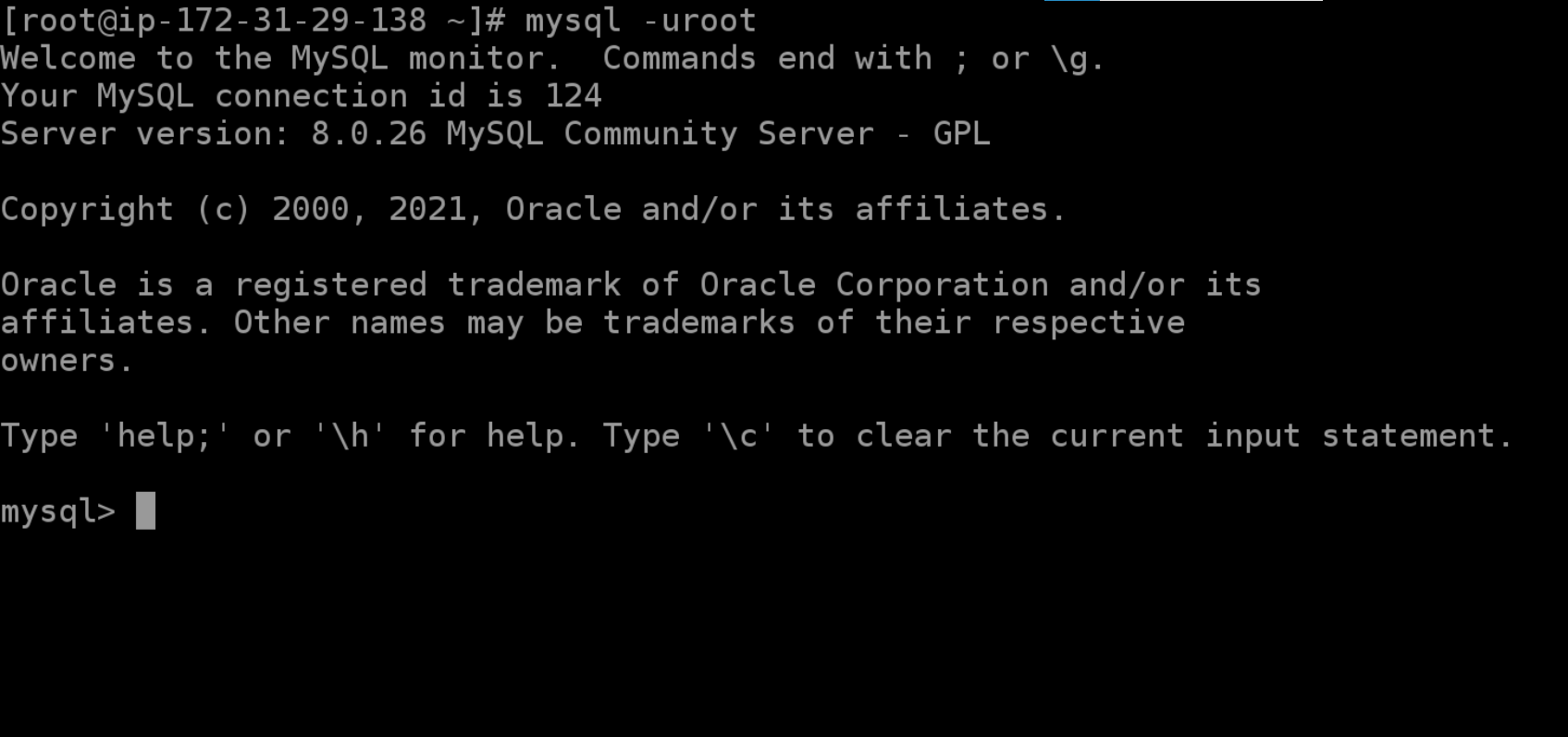
The credentials are stored in the /root/.my.cnf configuration file.
The default Zabbix frontend timezone can be changed in Administration > General > GUI