
1 Dashboard
Visão geral
O módulo Monitoramento → Dashboard é similar a um painel de um carro, apresentando as informações mais importantes.
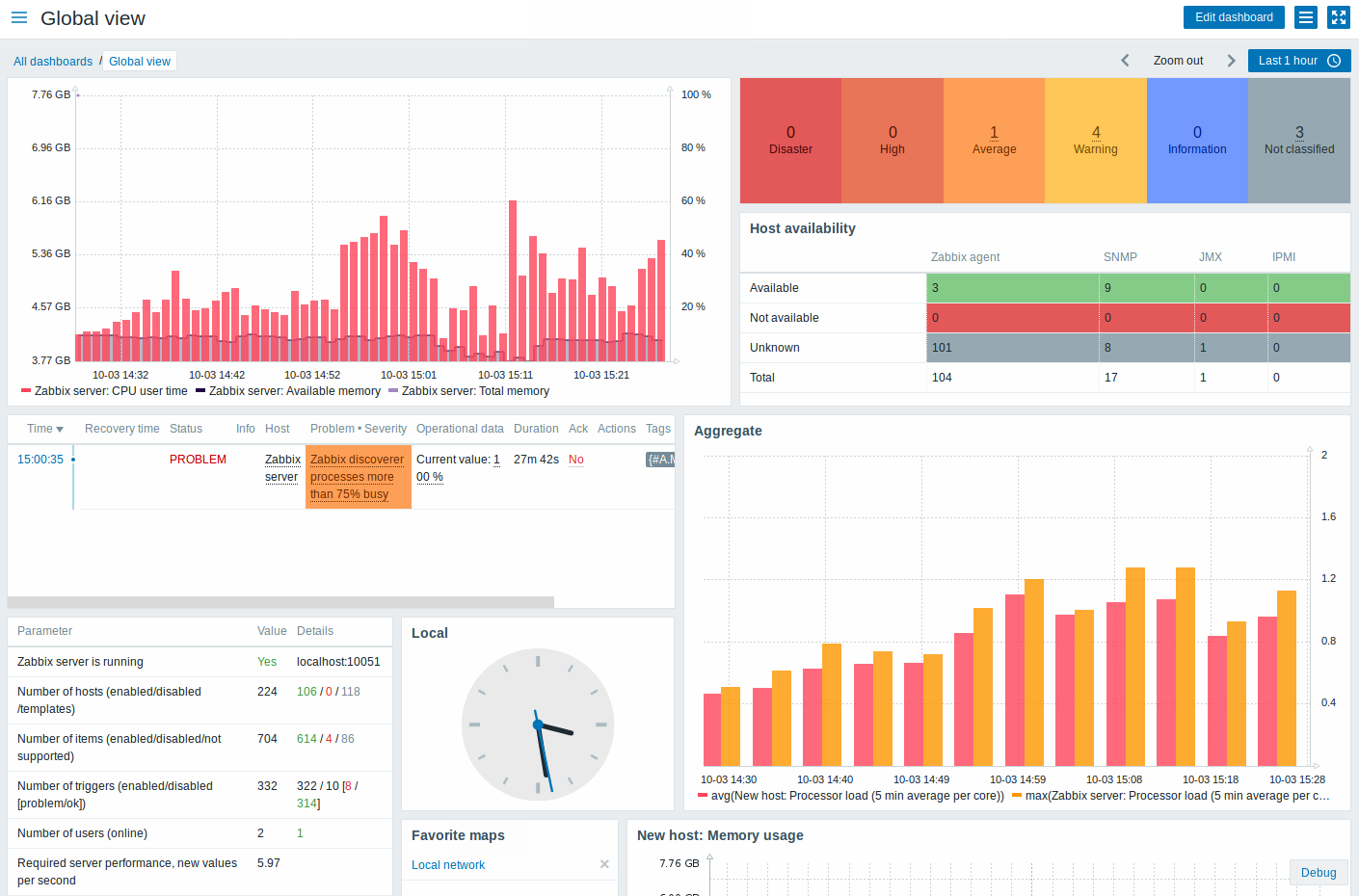
Os widgets do Dashboard podem ser agrupados em dois tipos: Favoritos e de Status. Os favoritos tem por função possibilitar a adição de links para acesso fácil, enquanto os de status tem por função mostrar visões agrupadas de determinado tipo de informação.
Todos eles suportam customização, podendo ser expandidos ou contraídos e ter sua posição modificada no dashboard.
Widgets de favoritos
Temos aqui alguns widgets para itens favoritos que possibilitam a criação de atalhos rápidos para os gráficos, gráficos customizados, apresentações de slides e mapas que você mais usa.
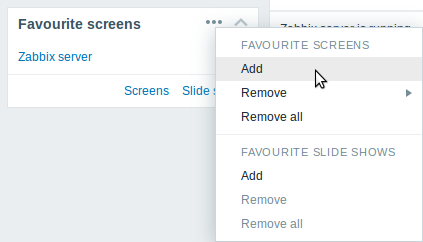
Para adicionar itens a um widget (exemplo para telas):
- Clique no botão menu do widget (botão com reticências)
- Selecione a opção Adicionar do menu flutuante
- Selecione no menu pop-up a(s) tela(s) desejada(s)
- Clique no botão Selecionar
Agora seu widget de telas favoritas tem novos atalhos para acesso fácil às suas telas.
Widgets de status
Existem vários widgets de status:
- Status do Zabbix - Mostra uma visão agrupada do ambiente Zabbix
- Status do sistema - Mostra uma visão agrupada dos incidentes classificados por severidade e grupo
- Status dos hosts - Mostra uma visão agrupada dos incidentes classificados grupo e ocorrência ou não de incidentes ativos
- Últimos 20 incidentes - Mostra os últimos 20 incidentes
- Monitoramento Web - Resumo das monitorações web agrupado por regra e resultado (sucesso / falha)
- Status das regras de autobusca - Resumo das regras de autobusca ativas (se não existir nenhuma regra este widget não aparece)
Dashboard filter
Clique no ícone
 na barra de título para ter acesso ao controle de filtros do dashboard.
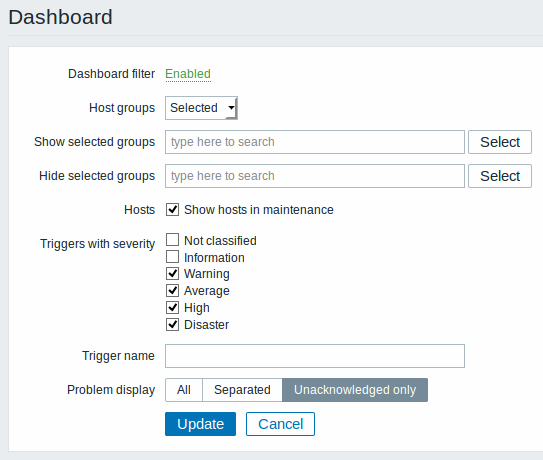
Ao ativar o filtro você pode limitar quais hosts e triggers serão apresentadas no dashboard e definir como os incidentes serão apresentados.
| Parâmetro | Descrição |
|---|---|
| Filtro de dashboard | Marque para ativar o filtro. |
| Grupos de hosts | Selecione para mostrar dados de: Todos - todos os grupos de hosts Selecionados - apenas dos grupos selecionados. |
| Exibir grupos selecionados | Este campo fica disponível quando o campo Grupos de hosts está com a opção Selecionados marcada. Entre com os grupos de hosts para apresentar, este campo possui recurso de auto-completar. Apenas os dados de grupos selecionados estarão visíveis no dashboard, se nenhum for informado todos serão exibidos. |
| Ocultar grupos selecionados | Este campo fica disponível quando o campo Grupos de hosts está com a opção Selecionados marcada. Entre com os grupos de hosts para NÃO EXIBIR, este campo possui recurso de auto-completar. Os grupos de hosts selecionados aqui não estarão visíveis no dashboard. É importante salientar que a ocultação de um grupo pode afetar a exibição de hosts em outros grupos, exemplo: Se os hosts 001, 002, 003 estão no grupo A e os hosts 002, 003 também estão no grupo B. E nós selecionamos para Exibir o grupo A e Esconder o grupo B ao mesmo tempo, apenas os dados do host 001 serão apresentados no dashboard. |
| Hosts | Selecione a opção Mostrar hosts em manutenção para apresentar dados de hosts que estão sob efeito de regras de manutenção programada no Dashboard. |
| Triggers com severidade | Marque as severidades de triggers que você deseja exibir no dashboard. |
| Nome de trigger como | Limite a apresentação de triggers nos widgets: Status do sistema, Status dos Hosts e Últimos 20 incidentes ao filtrar pelo nome das triggers. |
| Exibição de incidentes | Contabilizar os incidentes pela tratativa: Todos - Considera todos os incidentes Separados - incidentes não reconhecidos são contabilizados em separado do total de incidentes Somente não reconhecidos - apenas os incidentes não reconhecidos serão contabilizados. |
Se o filtro Dashboard estiver ativo, o ícone de ajuste de filtro terá um
indicador verde para indicar a existência do filtro ativo:
 .
.
Menu flutuante host
Ao clicar em um host no widget dos Últimos 20 incidentes será apresentado o menu flutuante do host. Este menu inclui links para scripts customizados, dados recentes, triggers, inventário, gráficos e telas daquele host.
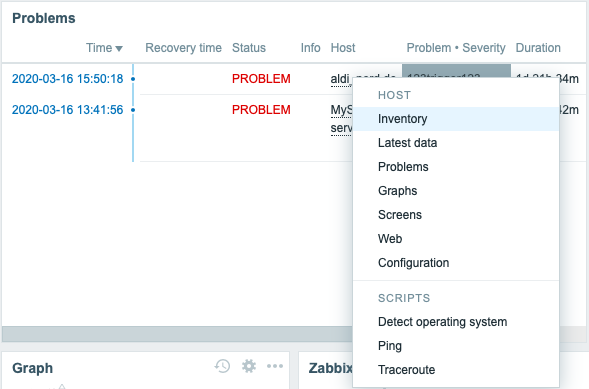
O menu de host é acessível ao clicar em um host em diversos locais:
- Monitoramento → Visão geral (na célula do host)
- Monitoramento → Dados recentes (ao clicar no nome do host)
- Monitoramento → Triggers (ao clicar no nome do host)
- Monitoramento → Eventos (ao clicar no nome do host)
- Monitoramento → Eventos → Detalhes do evento (ao clicar no nome do host)
- Monitoramento → Telas (nos widgets de Incidentes do Host e Incidentes do grupo de host)
- Monitoramento → Mapas (ao clicar no ícone associado ao host)
- Relatórios → Top 100 de triggers
Menu flutuante de triggers
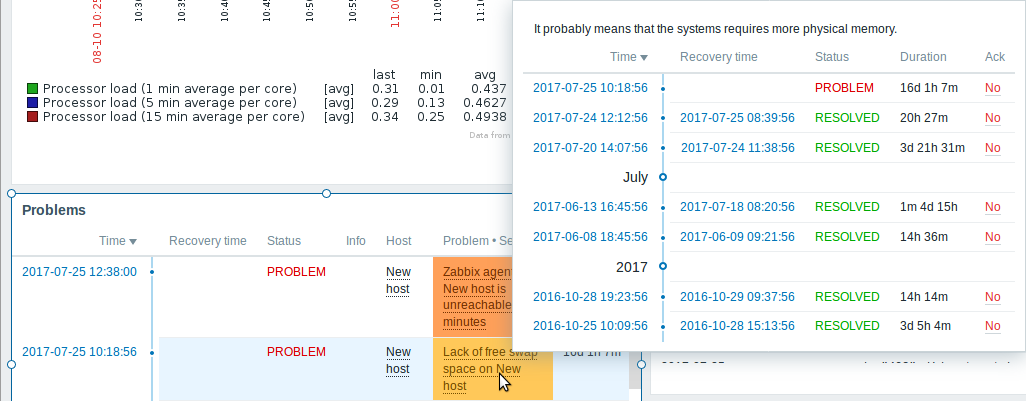
Clicando no Incidente apresentado no widget dos Últimos 20 incidentes será apresentado o menu flutuante de triggers e eventos. Ele contêm a lista de eventos e, se definido, a descrição da trigger e uma URL clicável.
Adding widgets
To add a widget to a dashboard:
- Click on the Add widget button in dashboard editing mode. The widget will be created in its default size and placed after the existing widgets (if any);
Or
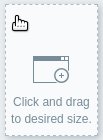
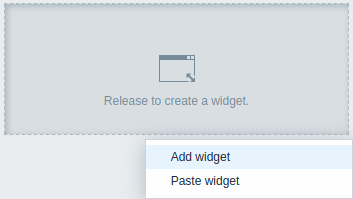
- Move your mouse to the desired empty spot for the new widget. Notice how a placeholder appears, on mouseover, on any empty slot on the dashboard. Then click to open the widget configuration form. After filling the form the widget will be created in its default size or take up all the available space if its default size is bigger. Alternatively you may click and drag the placeholder to the desired widget size, then release. (When releasing you may need to click on Add widget if the Paste widget from a copied widget option is also available.)
Then, in the widget configuration form:
- Select the Type of widget
- Enter widget parameters
- Click on Add
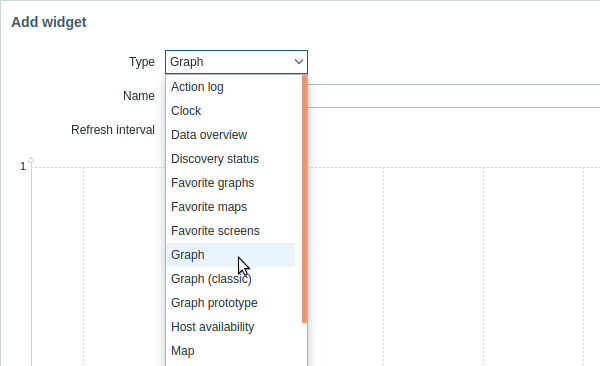
The following widgets can be added to a dashboard:
- Action log
- Clock
- Data overview
- Discovery status
- Favorite graphs
- Favorite maps
- Favorite screens
- Graph
- Graph (classic)
- Graph prototype
- Host availability
- Problem hosts
- Map
- Map navigation tree
- Plain text
- Problems
- System information
- Problems by severity
- Trigger overview
- URL
- Web monitoring
In dashboard editing mode widgets can be resized and moved around the dashboard by clicking on the widget title bar and dragging it to a new location. Also, you can click on the following buttons in the top-right corner of the widget to:
 -
edit a widget;
-
edit a widget; -
access the widget menu
-
access the widget menu
Click on Save changes for the dashboard to make any changes to the widgets permanent.
Widget menu
The widget menu contains different options based on whether the dashboard is in the edit or view mode:
| Widget menu | Options |
|---|---|
In dashboard edit mode: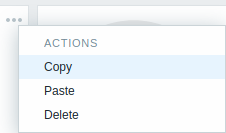 |
Copy - copy the widget Paste - paste a copied widget over this widget This option is grayed out if no widget has been copied. Delete - delete the widget |
In dashboard view mode: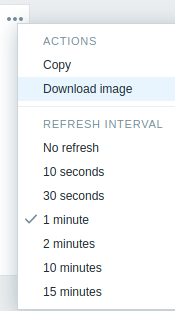 |
Copy - copy the widget Download image - download the widget as a PNG image (only available for graph/classic graph widgets) Refresh interval - select the frequency of refreshing the widget contents |
Copying/pasting widgets
Dashboard widgets can be copied and pasted. They can be copy-pasted within the same dashboard, or between dashboards opened in different tabs.
A widget can be copied using the widget menu. Then the copied widget can be used to create a new widget with the same properties:
- using the Paste widget button when editing the dashboard
- using the Paste widget option when adding a new widget by selecting some area in the dashboard (a widget must copied first for the paste option to become available)
A copied widget can be used to paste over an existing widget using the Paste option in the widget menu.
Dynamic widgets
When configuring some of the widgets:
- Graphs (simple and custom)
- Plain text
- URL
there is an extra option called Dynamic item. You can check this box to make the widget dynamic - i.e. capable of displaying different content based on the selected host.
Now, when saving the dashboard, you will notice that a new host selection field has appeared atop the dashboard for selecting the host (while the Select button allows to select the host group in a popup):

Thus you have a widget, which can display content that is based on the data from the host that is selected. The benefit of this is that you do not need to create extra widgets just because, for example, you want to see the same graphs containing data from various hosts.
Viewing and editing a dashboard
When viewing a single dashboard, the following options are available:
 |
Switch to the dashboard editing mode. | |
 |
Open the action menu (see description of the available actions below). | |
| Sharing | Edit sharing preferences for the dashboard. Dashboards can be made public or private. Public dashboards are visible to all users. Private dashboards are visible only to their owner. Private dashboards can be shared by the owner to other users and user groups. For details on configuring sharing, see the map configuration section. |
|
| Create new | Create a new dashboard. First you are prompted to enter general properties of the new dashboard - owner and name. Then, the new dashboard opens in editing mode and you can add widgets. |
|
| Clone | Create a new dashboard by copying properties of the existing one. First you are prompted to enter general properties of the new dashboard - owner and name. Then, the new dashboard opens in editing mode with all the widgets of the original dashboard. |
|
| Delete | Delete the dashboard. | |
 |
Display only page content (kiosk mode). Kiosk mode can also be accessed with the following URL parameters: /zabbix.php?action=dashboard.view&kiosk=1To exit to normal mode: /zabbix.php?action=dashboard.view&kiosk=0 |
|
Editing mode is opened:
- when a new dashboard is being created
- when you click on the
edit button of a widget
- when you click the Edit dashboard button for an existing dashboard
In the dashboard editing mode the following options are available:
 |
Edit general dashboard properties - name and owner. |
 |
Add a new widget. |
 |
Paste a copied widget. This button is grayed out if no widget has been copied. |
 |
Save dashboard changes. |
 |
Cancel dashboard changes. |
Permissions to dashboards
Permissions to dashboards for regular and Zabbix Admin users are limited in the following way:
- They can see and clone a dashboard if they have at least READ rights to it;
- They can edit and delete dashboard only if they have READ/WRITE rights to it;
- They cannot change the dashboard owner.
Host menu
Clicking on a host in the Problems widget brings up the host menu. It includes links to custom scripts, inventory, latest data, problems, graphs, screens, web scenarios and configuration for the host. Note that host configuration is available for Admin and Superadmin users only.
The host menu is accessible by clicking on a host in several other frontend sections:
- Monitoring → Problems
- Monitoring → Problems → Event details
- Monitoring → Hosts
- Monitoring → Hosts → Web Monitoring (since 5.0.4)
- Monitoring → Overview (on Hosts: left)
- Monitoring → Latest data
- Monitoring → Screens (in Host issues and Host group issues widgets)
- Monitoring → Maps
- Reports → Triggers top 100
Problem event popup
The problem event popup includes the list of problem events for this trigger and, if defined, the trigger description and a clickable URL.
To bring up the problem event popup:
- roll a mouse over the problem name in the Problem-Severity column of the Problems widget. The popup disappears once you remove the mouse from the problem name.
- click on the problem name in the Problem-Severity column of the Problems widget. The popup disappears only if you click on the problem name again.
Resolved values of {ITEM.VALUE} and
{ITEM.LASTVALUE} macros in trigger descriptions are truncated to 20
characters. To see the entire values you may use macro
functions with these macros,
e.g. {{ITEM.VALUE}.regsub("(.*)", \1)},
{{ITEM.LASTVALUE}.regsub("(.*)", \1)} as a workaround.