
Available solutions

SIGNL4 webhook
Overview
When critical systems fail, SIGNL4 is the fastest way to alert your staff, engineers, IT admins on call and "in the field". SIGNL4 provides reliable notifications via mobile app push, text and voice calls with tracking, escalations and duty scheduling. Discover how to integrate with Zabbix 7.4 and get the SIGNL4 app at https://www.signl4.com.
Pairing Zabbix with SIGNL4 can enhance your daily operations with an extension to your team wherever it is. The two-way integration allows service engineers or IT administrators not only to receive alerts but also to acknowledge, annotate and close alerts, no matter where they are.

Requirements
Zabbix version: 7.4 and higher.
Parameters
After importing the webhook, you can configure it using webhook parameters.
Configurable parameters
The configurable parameters are intended to be changed according to the webhook setup as well as the user's preferences and environment.
| Name | Value | Description |
|---|---|---|
| Zabbix_URL | {$ZABBIX.URL} | Current Zabbix URL. |
| tls_verify | {$HTTP.TLS.VERIFY:"SIGNL4"} | TLS certificate verification for HTTP requests: "none" - disabled, "peer" - verify the certificate chain and expiration, "full" - full verification. Any other value enables full verification. To override the setting for this media type only, define the global macro with the context "SIGNL4", e.g. {$HTTP.TLS.VERIFY:"SIGNL4"}. |
Internal parameters
Internal parameters are reserved for predefined macros that are not meant to be changed.
| Name | Value | Description |
|---|---|---|
| Event_Ack_Status | {EVENT.ACK.STATUS} | Acknowledgment status of the event (Yes/No). |
| Event_Date_Time | {EVENT.DATE} {EVENT.TIME} | Event datetime. |
| Event_ID | {EVENT.ID} | Numeric ID of the event that triggered an action. |
| Event_Update_Action | {EVENT.UPDATE.ACTION} | Human-readable name of the action(s) performed during a problem update. |
| Event_Update_Status | {EVENT.UPDATE.STATUS} | Numeric value of the problem update status. Possible values: 0 - Webhook was called because of problem/recovery event, 1 - Update operation. |
| Hostname | {HOST.NAME} | Visible host name. |
| Host_IP | {HOST.IP} | Host IP address |
| Message | {ALERT.MESSAGE} | 'Default message' value from action configuration. |
| Severity | {EVENT.SEVERITY} | Name of the event severity. |
| Subject | {ALERT.SUBJECT} | 'Default subject' value from action configuration. |
| teamsecret | {ALERT.SENDTO} | 'Send to' value from user media configuration. |
| Trigger_ID | {TRIGGER.ID} | Numeric ID of the trigger of this action. |
| Trigger_Status | {TRIGGER.STATUS} | Trigger value at the time of operation step execution. Can be either PROBLEM or OK. |
| User | {USER.FULLNAME} | Name, surname, and username of the user who added an event acknowledgment or started the script. |
Please be aware that each webhook supports an HTTP proxy. To use this feature, add a new media type parameter with the name
http_proxyand set its value to the proxy URL.
Service setup
Refer to the vendor documentation.
Zabbix configuration
This section describes the setup and configuration of the SIGNL4 webhook for Zabbix:
-
Get SIGNL4
If not already done, sign up for your SIGNL4 account at https://www.signl4.com or directly from within your SIGNL4 app you can download from the Play Store or App Store. -
Get the Webhook YAML
If you use Zabbix 7.4 or higher, SIGNL4 is already available as a media type by default. Otherwise you can get the YAML file (zabbix-signl4.yaml) for Zabbix from Git (https://git.zabbix.com/projects/ZBX/repos/zabbix/browse/templates/media/signl4). -
Import and Configure the Media Type
In the SIGNL4 media type you just need to configure the parameter "teamsecret". This is the team secret of your SIGNL4 team. This is the last part of your webhook URL: https://connect.signl4.com/webhook/. If you use a Zabbix version lower than 5.0 can now import a new Media Type under Administration -> Media types -> Import. Select the file zabbix-signl4.yaml here.
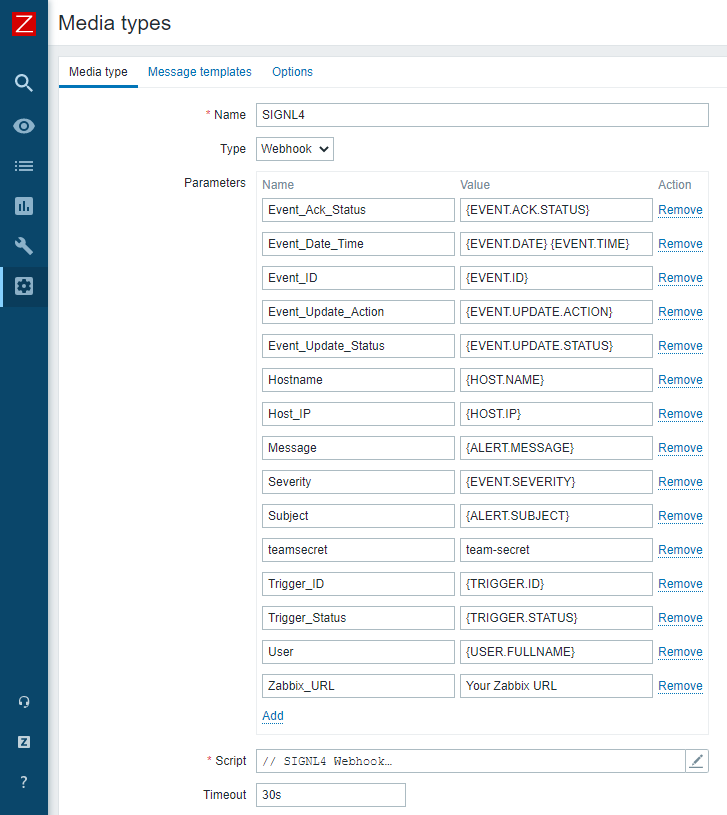
- Add Media Type to User
Under Administration -> Users, create a dedicated user and add the media type we have created above. In the "Sent to" field you can also use your SIGNL4 team secret.

Please note that this user represents your SIGNL4 team, so it is more a team than a single user in this case.
-
Configure Two-Way Integration
In addition it is possible to acknowledge, annotate and close alerts from SIGNL4. To forward this information back to Zabbix, you need to configure the Zabbix connector in your SIGNL4 portal under Apps. Here you need to configure the Zabbix username and password as well as the public Zabbix URL reachable from the Internet. -
Create an Action
Under Configuration -> Actions you can create an Action that will send the notification to the SIGNL4 user.

- Test it
Now you can trigger a problem that will call the above action to then send the alert notification to your SIGNL4 user.
You can find the package in Git: https://git.zabbix.com/projects/ZBX/repos/zabbix/browse/templates/media/signl4
You can find the information and packages for older Zabbix versions on GitHub: https://github.com/signl4/signl4-integration-zabbix
Feedback
Please report any issues with the media type at https://support.zabbix.com.
You can also provide feedback, discuss the media type, or ask for help at ZABBIX forums.


