
在云中部署 Zabbix
要在云端启动 Zabbix,请按照以下流程操作:
- 在 cloud.zabbix.com 登录或注册。
- 创建云节点。
- 开始在云端使用 Zabbix。
登录或注册
您可以使用现有的 Google、GitHub 或 Microsoft 账户在 cloud.zabbix.com 登录。
或者,前往注册页面进行注册。
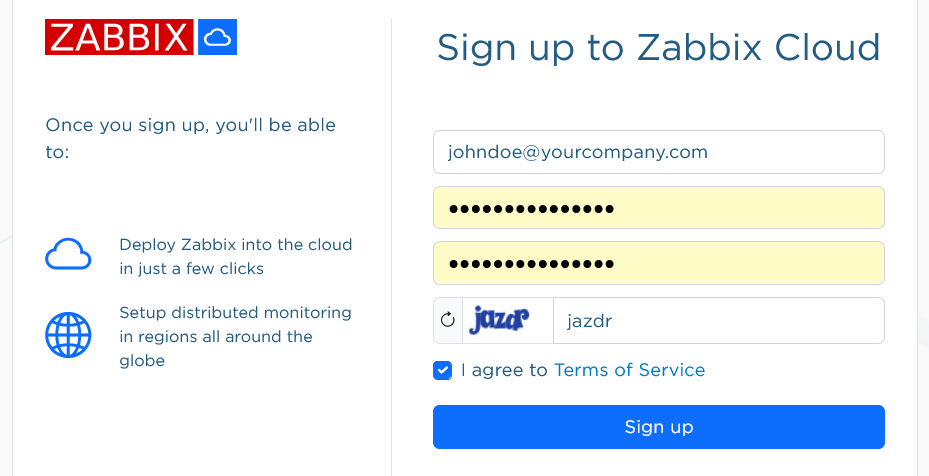
注册后,您将在电子邮件中收到新账户的确认信息。
前往 cloud.zabbix.com 登录。 登录时,系统会要求您输入一次性密码。 该密码将通过电子邮件发送给您。
创建云节点
云节点是部署在 Zabbix Cloud 中的 Zabbix 实例。 它可以部署为服务器节点或 proxy 节点。
登录后,您会看到默认情况下账户中已存在一个 Private 组织。 您可以稍后重命名默认组织。
点击 Create New Node。 系统将打开一个包含三个步骤的节点配置表单。
在第一步中,您将选择基本信息。
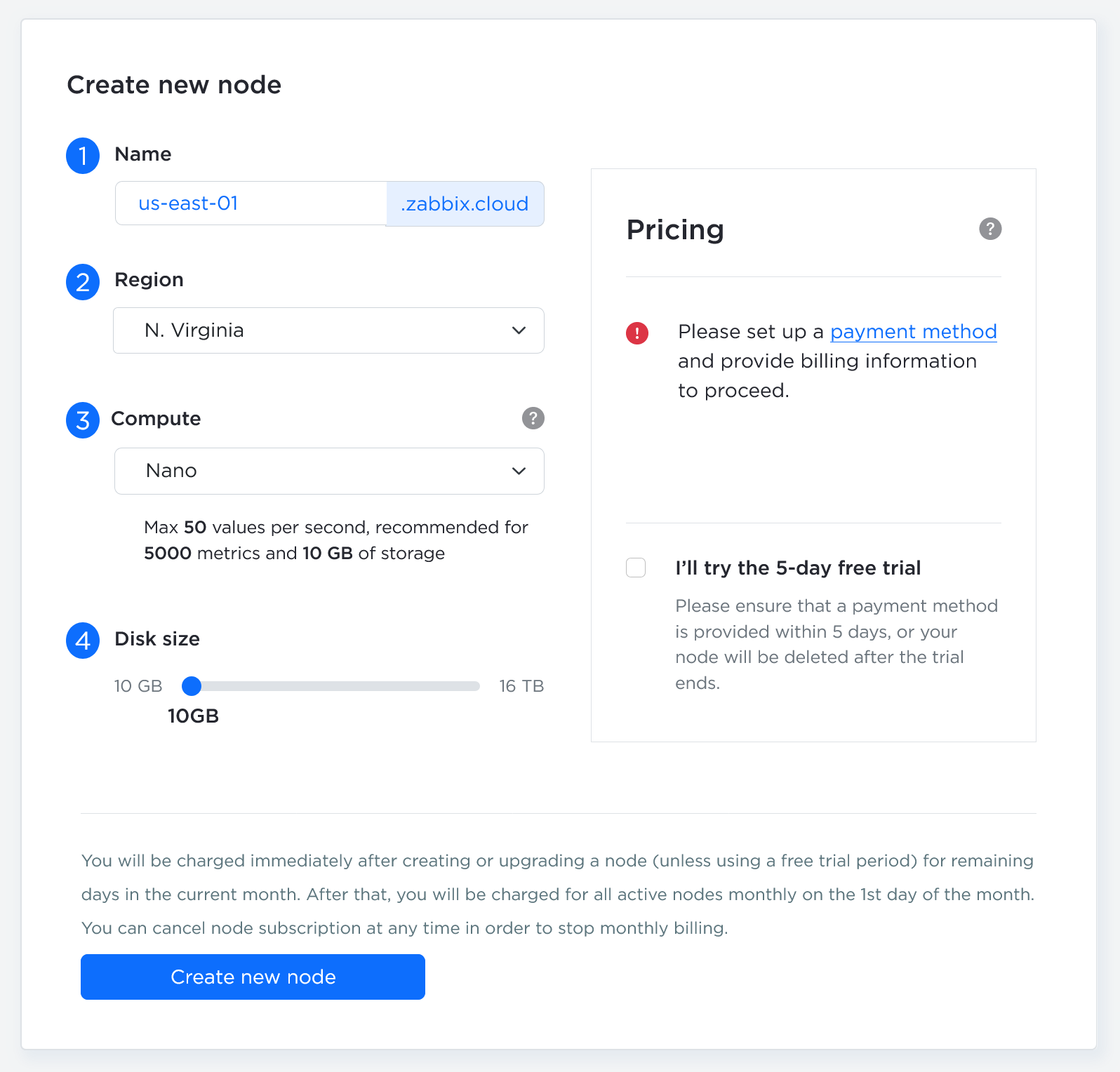
| Parameter | Description |
|---|---|
| Server/Proxy | 选择部署 Zabbix 服务器实例还是 Zabbix proxy 实例。 |
| Node name | 节点名称将以 <your-name>.zabbix.cloud 的格式构成唯一子域名,用于访问节点的服务。 |
| Compute | 选择节点的计算能力。 要确定所需的资源级别,请参阅定价详情。如果需要更高的计算能力,您可以随时升级。创建非试用节点前需要设置计费方式。请通过 Billing 菜单添加计费信息。 您可以使用 Nano 层级节点进行为期 5 天的免费试用。试用期间不会向您收费,但试用结束后,如果未将节点转换为付费节点,系统将删除该节点。 |
| Disk size | 滑块默认设置为根据层级推荐的最小值。 如果您存储大量历史数据或趋势数据,请增大该值。请注意,磁盘越大,每月费用越高,并且您无法自行缩小磁盘;如需缩小磁盘,必须联系支持团队。 |
| Region | 选择节点的部署区域。 |
| Select timezone | 选择 Zabbix 服务器的时区。此时区由 Zabbix 服务器使用,与维护时区和用户配置文件时区相互独立。 |
完成配置后,点击 Next。
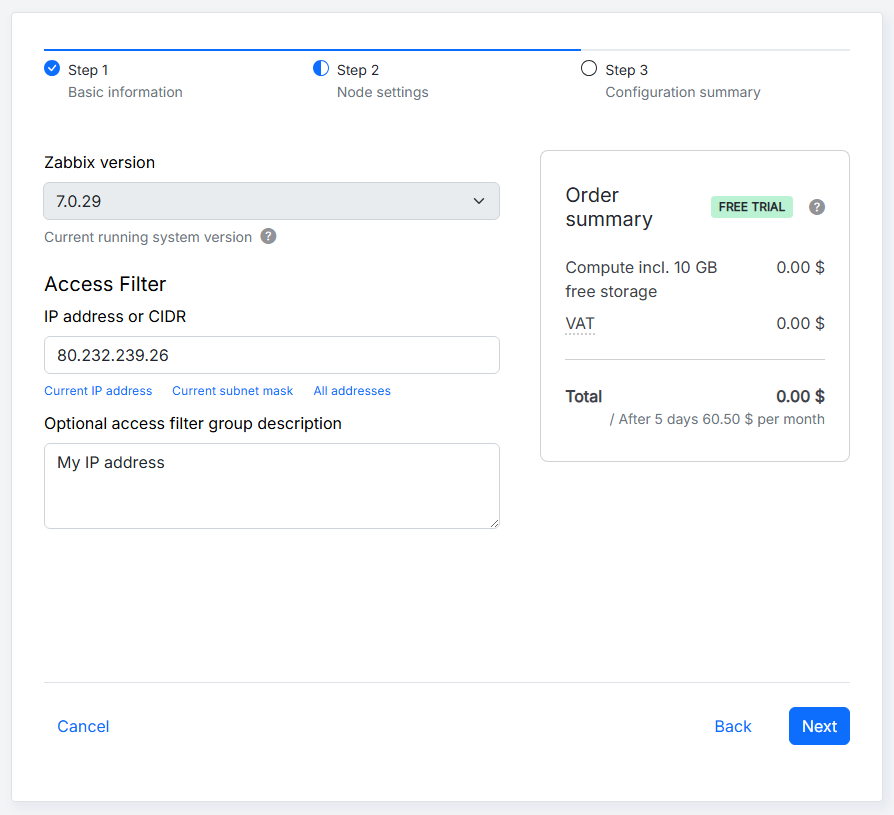
在第二步中,您将选择节点设置。
第二步中的配置选项取决于您创建的是服务器节点还是 proxy 节点。
配置服务器节点
创建服务器节点时,可以使用以下参数:
| Parameter | Description |
|---|---|
| Zabbix version | 选择 Zabbix 版本。Zabbix Cloud 支持最新的 LTS 版本,并会自动应用次要版本更新。 |
| IP address or CIDR | 指定节点的初始访问过滤器。手动输入 IP 地址或 CIDR,或者选择相关选项自动填写该字段。对于服务器节点,此过滤器适用于与服务器、API 和前端的连接。稍后可以在访问过滤器选项卡中更改该过滤器。 |
| Optional access filter group description | 为访问过滤器组添加可选描述,该组可以包含多个 IP 地址或 CIDR。 |
创建节点时,IP address or CIDR 字段会预先填入用于访问 Zabbix Cloud 的 IP 地址。 您可以更改此值,以指定其他初始访问过滤器。 创建节点后,您可以在 Access filters 选项卡中添加、编辑或删除访问过滤器。
第三步显示节点的配置摘要。
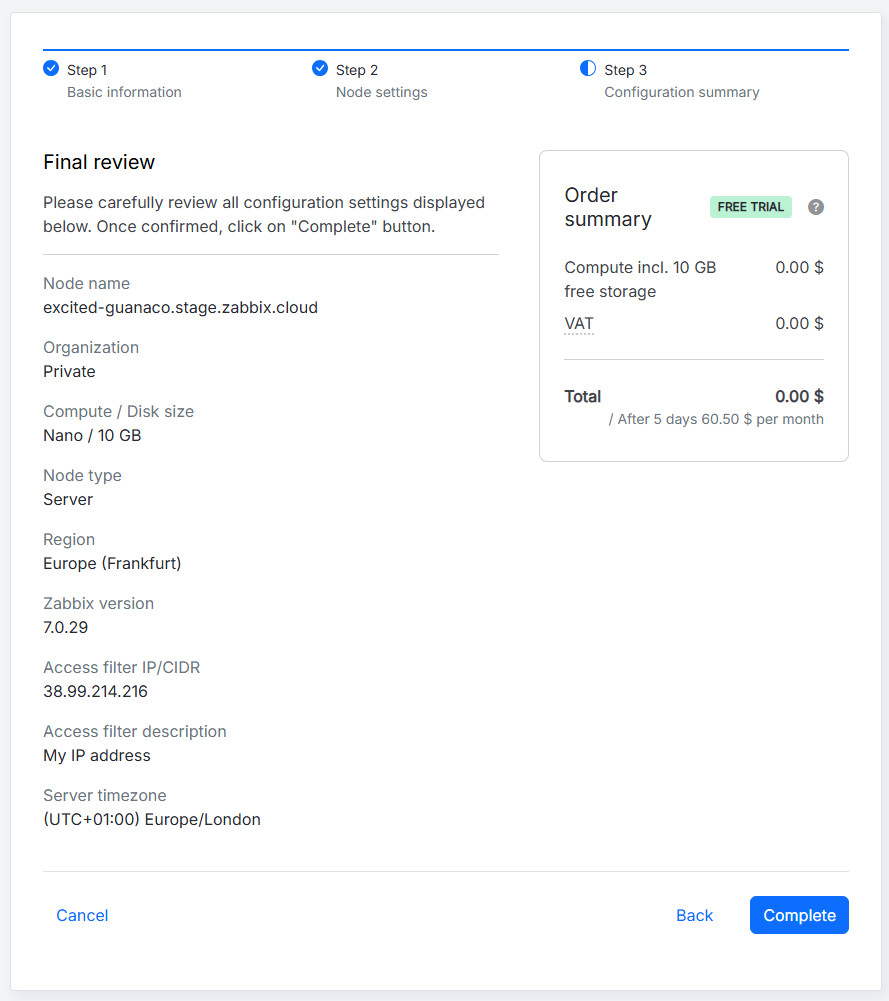
查看配置设置并确认所有内容正确后,对于试用节点,点击 Complete;对于付费节点,点击 Proceed to payment。 否则,点击 Back 按钮返回上一步,或点击 Cancel 从头开始。
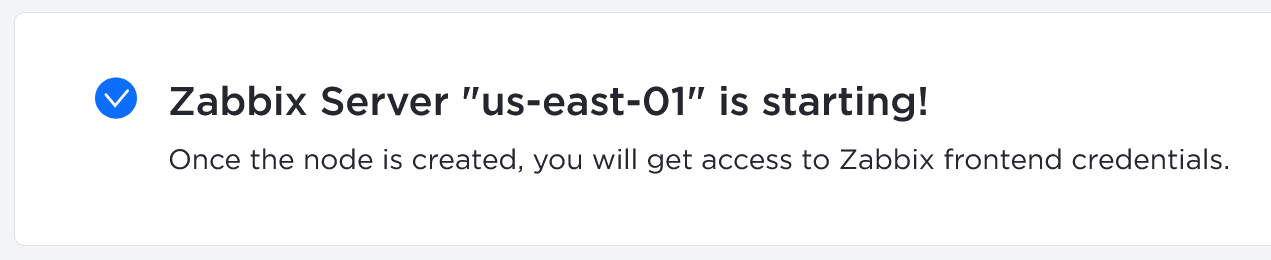
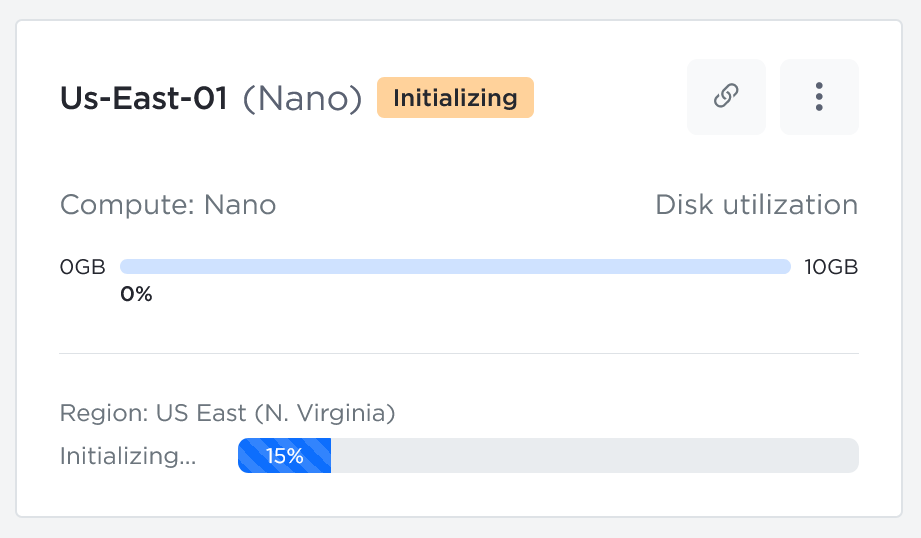
节点初始化期间,系统会显示相应消息,并且该节点已经出现在 Organizations 下。
配置 proxy 节点
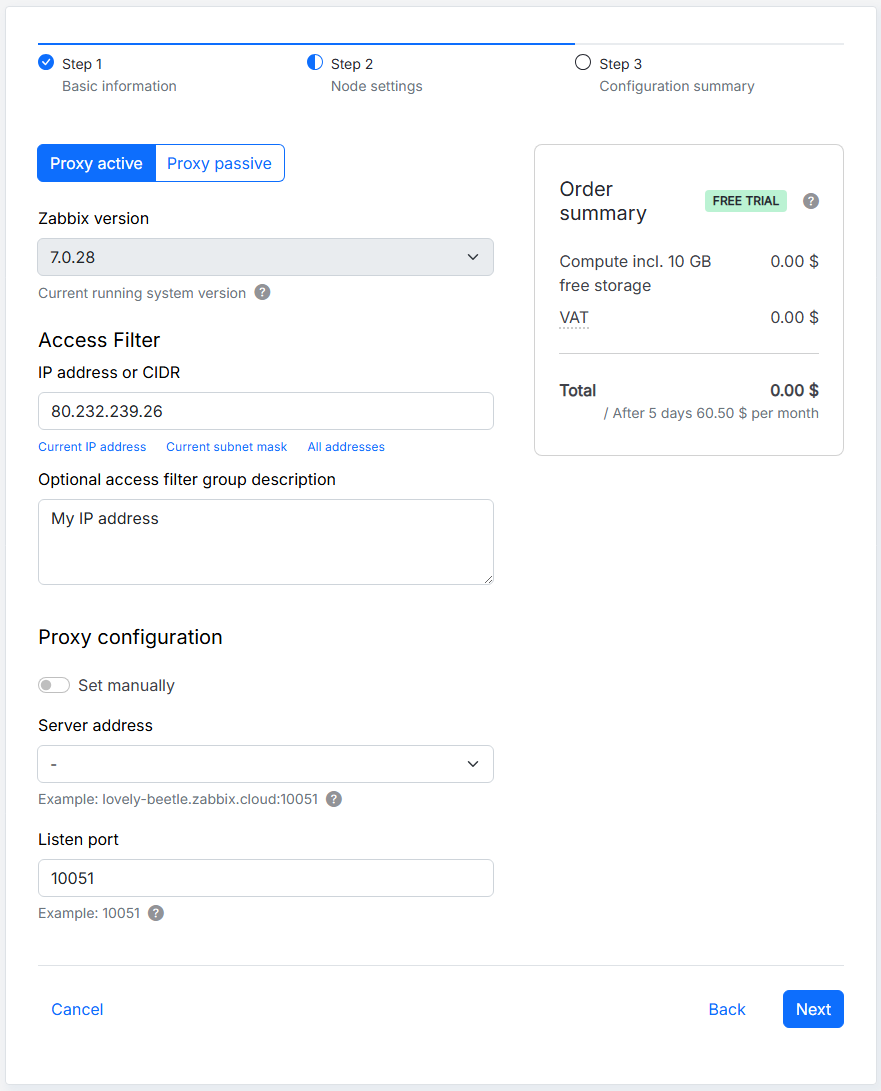
创建 proxy 节点时,可以使用以下参数:
| Parameter | Description |
|---|---|
| Proxy active/Proxy passive | 选择 proxy 模式。在主动模式下,proxy 向 Zabbix 服务器发起连接;在被动模式下,Zabbix 服务器向 proxy 发起连接。 |
| Zabbix version | 选择 Zabbix 版本。Zabbix Cloud 支持最新的 LTS 版本,并会自动应用次要版本更新。 |
| IP address or CIDR | 指定 proxy 的初始入站 IP 访问过滤器。手动输入 IP 地址或 CIDR,或者选择相关选项自动填写该字段。该过滤器定义允许到达 proxy 的网络请求,并且稍后可以在访问过滤器选项卡中更改。 |
| Optional access filter group description | 为访问过滤器组添加可选描述,该组可以包含多个 IP 地址或 CIDR。 |
| Set manually | 选择指定 Zabbix 服务器的方式。禁用时,从可用服务器节点列表中选择一个服务器节点。启用时,手动指定服务器地址。 |
| Server address | 指定 Zabbix 服务器地址。禁用 Set manually 时,从列表中选择一个服务器节点。启用时,最多指定 10 个服务器地址。对于主动 proxy,请指定 Zabbix 服务器的 IP 地址或 DNS 名称。对于被动 proxy,请指定 Zabbix 服务器的 IP 地址、DNS 名称或 CIDR。访问过滤器需要单独配置;指定服务器地址时不会自动更新访问过滤器。 |
| Listen port | 指定 proxy 监听传入连接的端口。默认端口为 10051。创建节点后无法更改监听端口。 |
在第三步中,您将看到节点的配置摘要。
查看配置设置并确认所有内容正确后,对于试用节点,点击 Complete;对于付费节点,点击 Proceed to payment。 否则,点击 Back 按钮返回上一步,或点击 Cancel 从头开始。
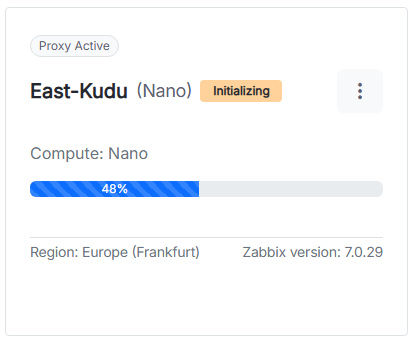
节点初始化期间,系统会显示相应消息,并且该节点已经出现在 Organizations 下。

要配置 Zabbix Cloud proxy,请参阅设置 Zabbix Cloud proxy。
开始使用 Zabbix
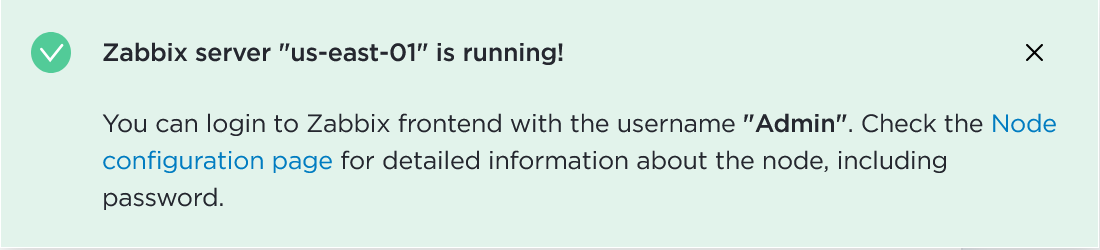
当服务器节点状态从 Initializing 变为 Running 后,您可以登录 Zabbix 前端。
要获取初始前端密码,请点击已创建的节点。
您将进入节点的设置(概览、访问过滤器、加密、备份等)。 在 Connection info 中,找到 Node password 字段,然后从下拉菜单中选择 Reset password for Admin。 密码重置后,点击同一下拉菜单并选择 Copy。
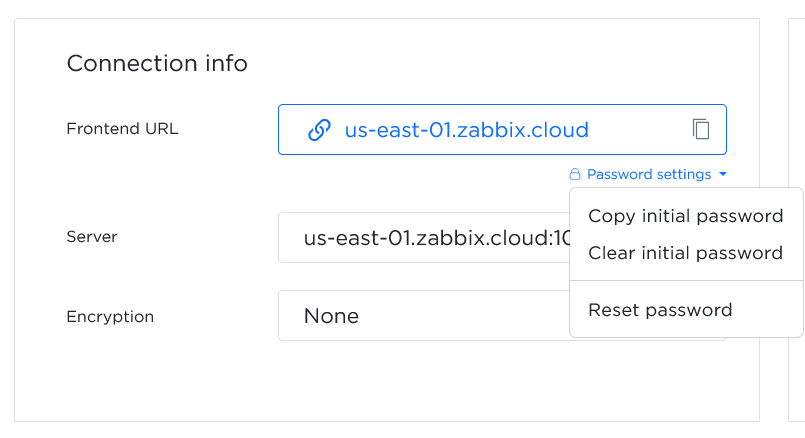
点击前端 URL,打开 Zabbix 前端(excited-guanaco.zabbix.cloud)。
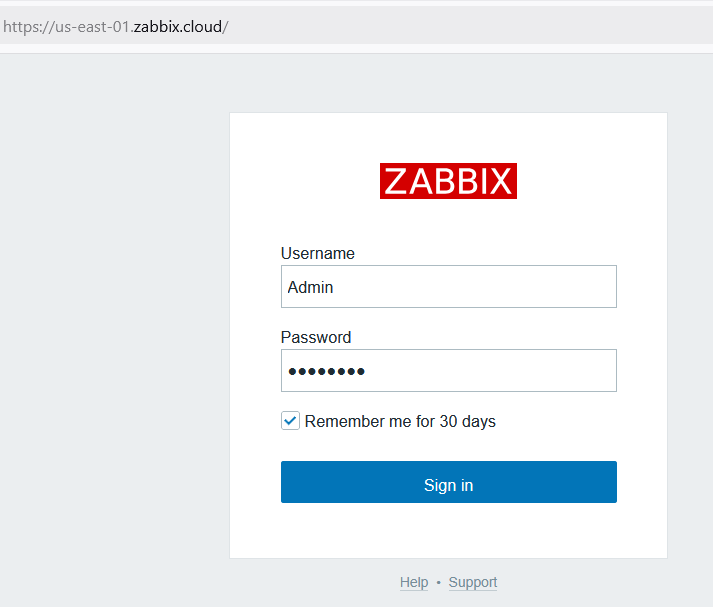
使用以下凭据登录:
- Username -
Admin - Password - 提供复制的密码
要开始监控,您需要定义访问过滤器 - 允许连接到 Zabbix Cloud 服务器的 IP 地址。 至少必须定义一个地址。
组织管理
组织是一个或多个节点的容器。 组织还可以帮助您构建资源结构并委派职责,例如:
- 节点管理
- 计费
登录 Zabbix Cloud 后,将显示所有组织页面。 默认情况下,系统会为您的账户创建一个私有组织。
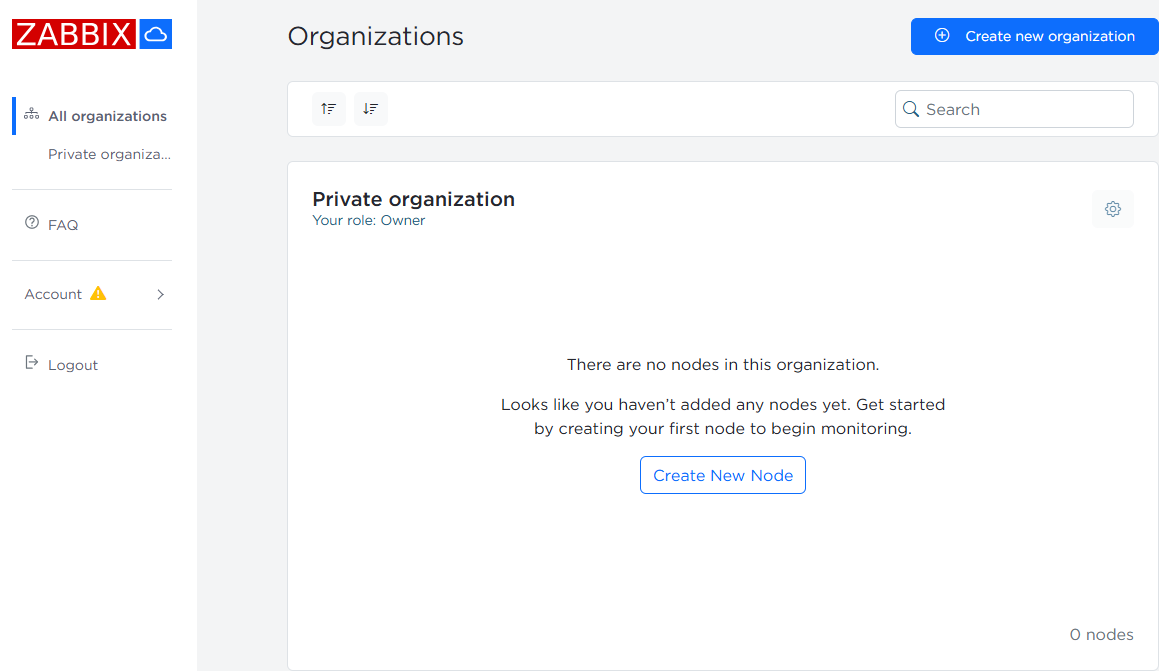
作为此组织的所有者,您可以管理用户、管理员、节点以及组织名称。
点击  设置按钮以访问管理选项。
账户管理
更改账户电子邮件地址
要更改账户电子邮件地址,请导航至 账户 > 配置文件设置。
在 用户电子邮件 字段中输入新的电子邮件地址,然后点击 保存更改。
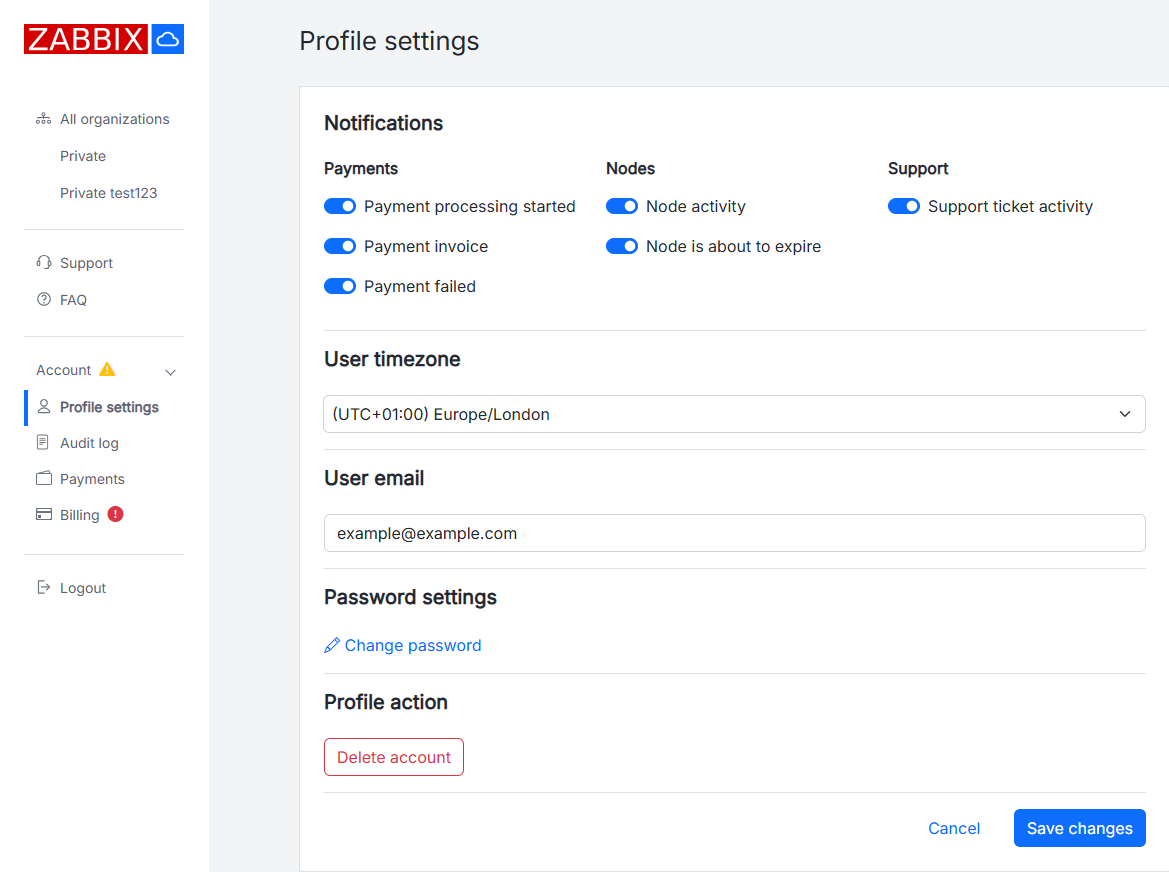
系统会向新的电子邮件地址发送确认消息。 请点击消息中的链接,以确认电子邮件地址更改。
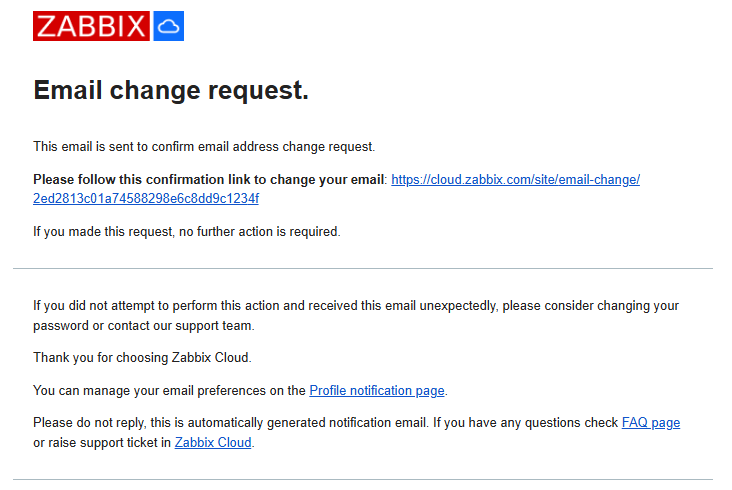
确认链接会打开 配置文件设置 页面,并显示确认消息;用户电子邮件字段中也会显示更新后的电子邮件地址。
确认更改后,系统会向新的和之前的电子邮件地址发送确认更改的邮件。 发送到之前地址的消息中会包含之前和新的电子邮件地址。