Descripción general de la aplicación
La aplicación móvil de Zabbix (próximamente) le permite supervisar su entorno de Zabbix desde su dispositivo móvil.
Vea los problemas, consulte sus detalles, actualícelos y reciba notificaciones push cuando algo requiera atención.
Esta página ofrece una descripción general de la aplicación móvil y explica cómo utilizarla.
Problemas
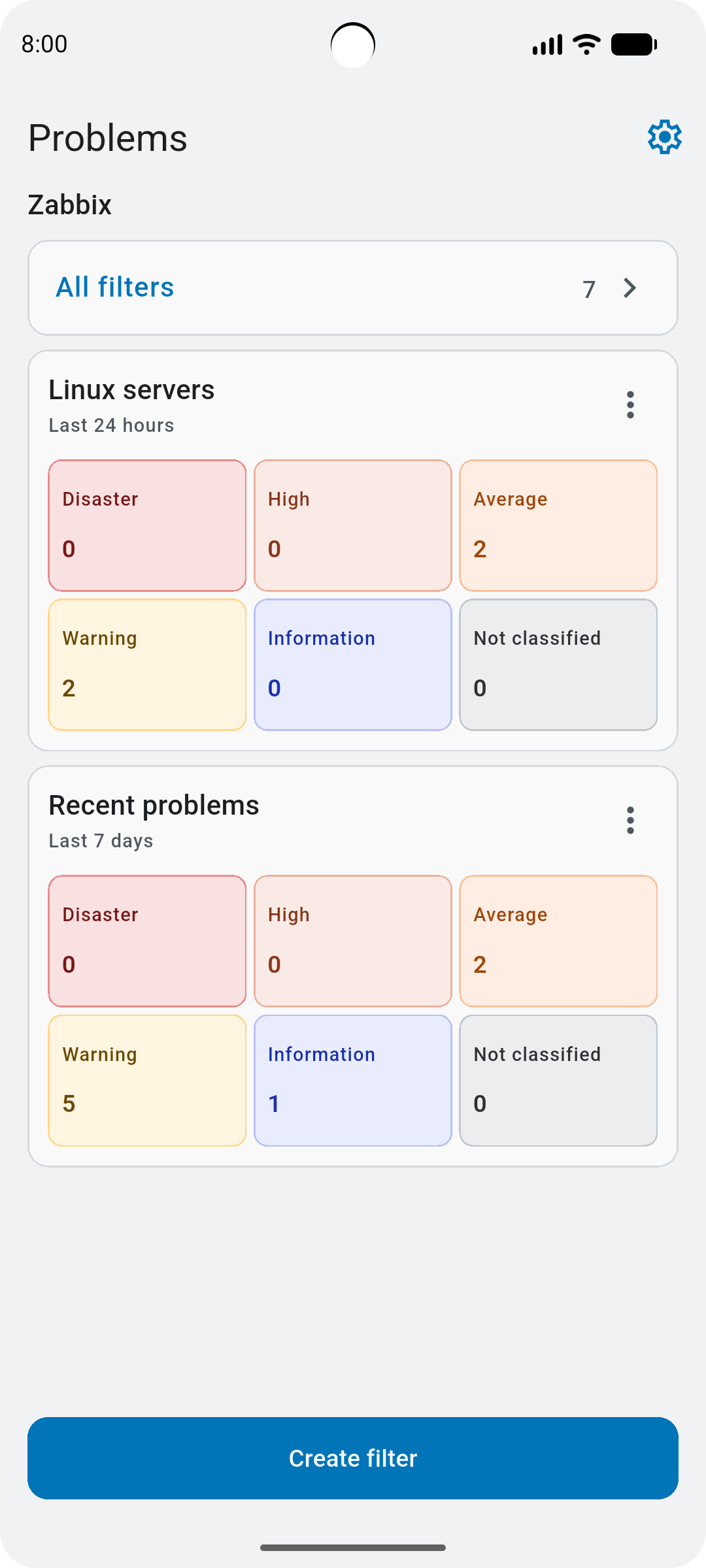
La pantalla Problemas muestra una vista general de los problemas según los filtros fijados. Contiene:
- Icono de Configuración: tóquelo para ver la configuración de la aplicación.
- Todos los filtros: tóquelo para ver y administrar los filtros.
- Nombre del Zabbix server (o Zabbix, si no se configuró durante la instalación de la interfaz web de Zabbix).
- Filtros fijados: toque su nombre o una gravedad para abrir la pantalla Lista de problemas. Toque el menú de tres puntos para administrar el filtro: editarlo, duplicarlo, quitarlo de los fijados o eliminarlo. Tenga en cuenta que los filtros fijados se ordenan alfabéticamente y que el filtro Problemas recientes no se puede editar ni eliminar.
- Crear filtro: tóquelo para crear un filtro nuevo.
Notificaciones
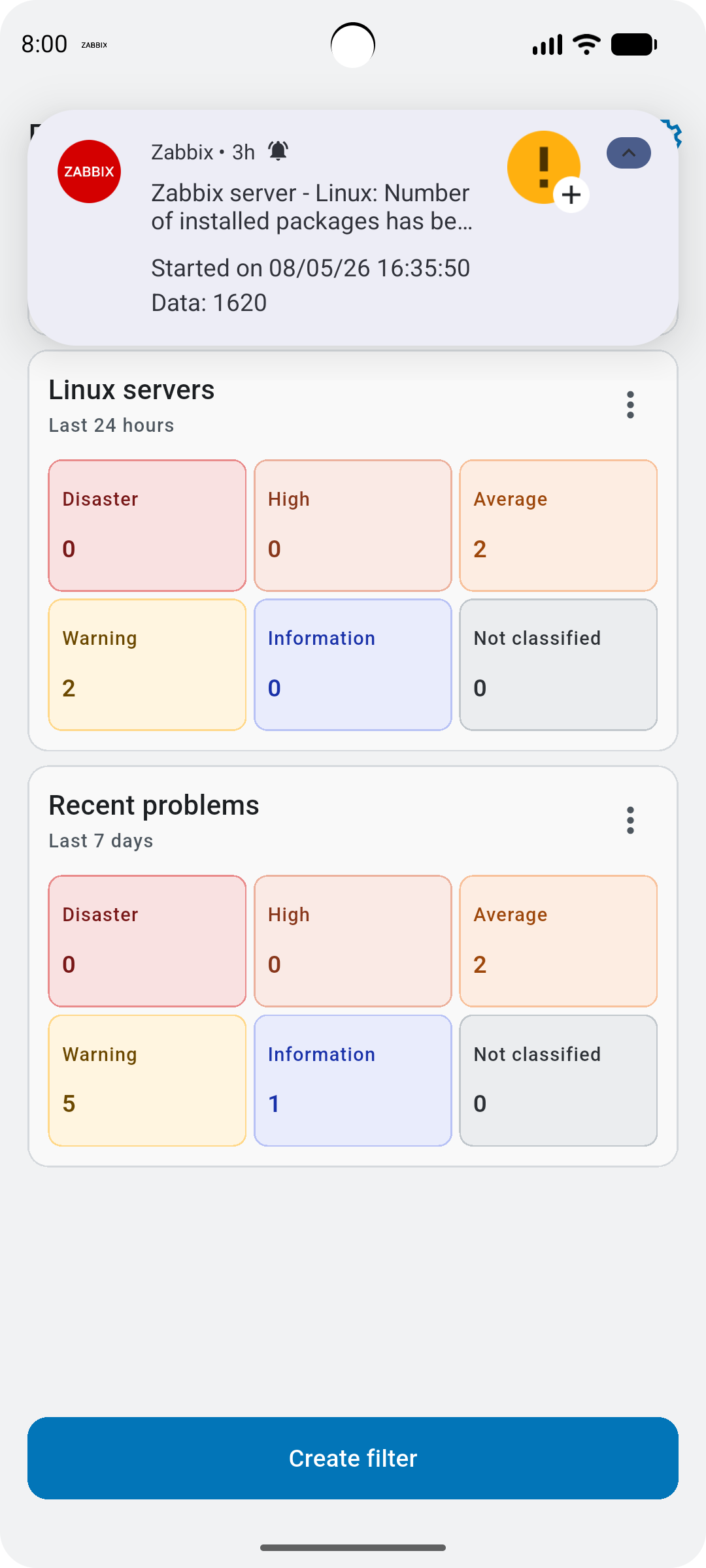
Cuando el server de Zabbix detecta un problema, puede enviar una notificación a su dispositivo móvil. La notificación contiene el host con el problema, su nombre y un mensaje generado a partir de las plantillas de mensajes configuradas para el tipo de medio de notificaciones push.
Toque la notificación para abrir la pantalla Detalles del problema.
Todos los filtros
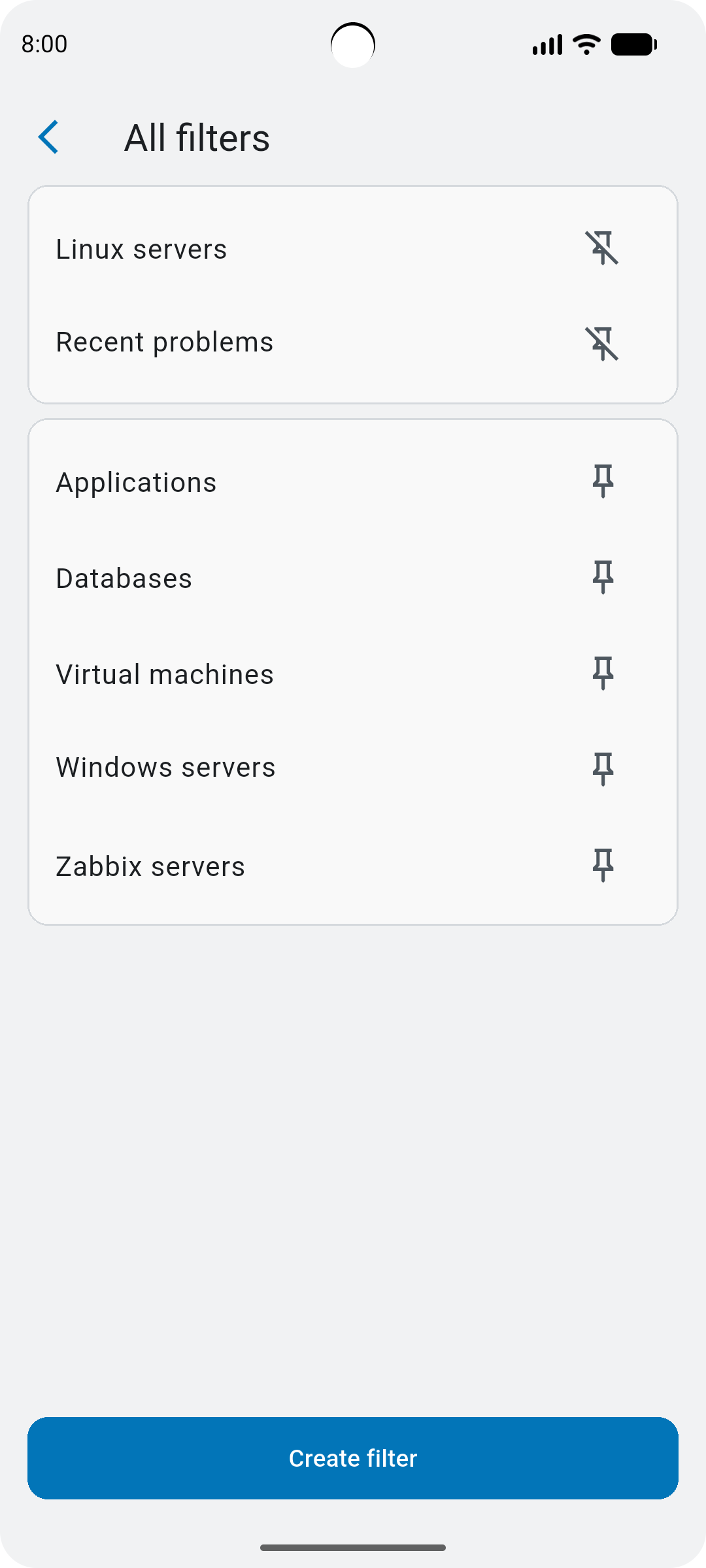
La pantalla Todos los filtros permite gestionar los filtros. Contiene:
- Nombres de filtros: toque para editar el filtro.
- Iconos de chincheta: toque para fijar o desfijar el filtro en la pantalla Problemas.
- Crear filtro: toque para crear un filtro nuevo.
Crear filtro
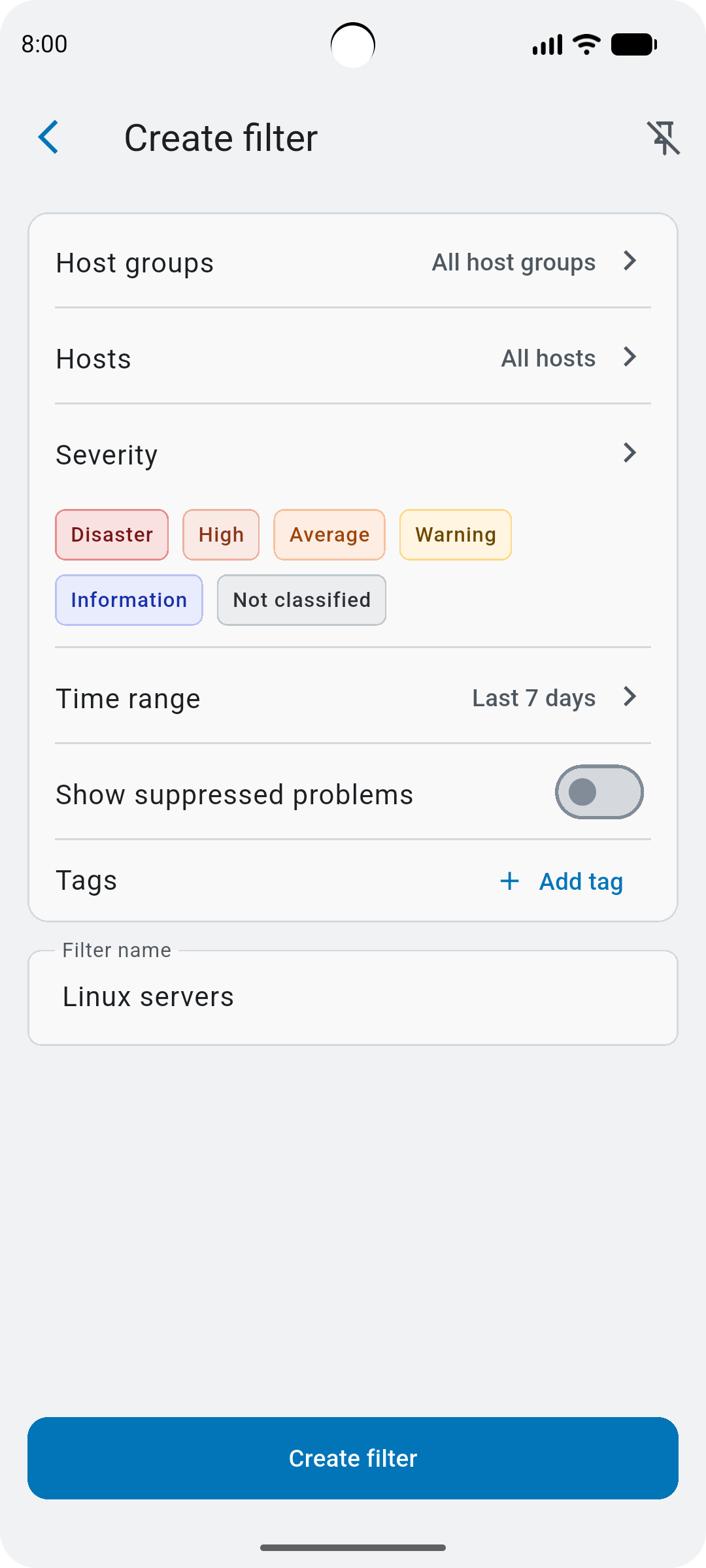
La pantalla Crear filtro permite crear un filtro con opciones similares a las de Monitorización > Problemas (consulte los detalles). También puede establecer un Intervalo de tiempo para determinar durante cuánto tiempo se mostrarán los problemas sin resolver.
Pulse Crear filtro para guardar el filtro. Los filtros nuevos se fijan en la pantalla Problemas; pulse el icono de fijación para cambiar esta configuración.
Lista de problemas
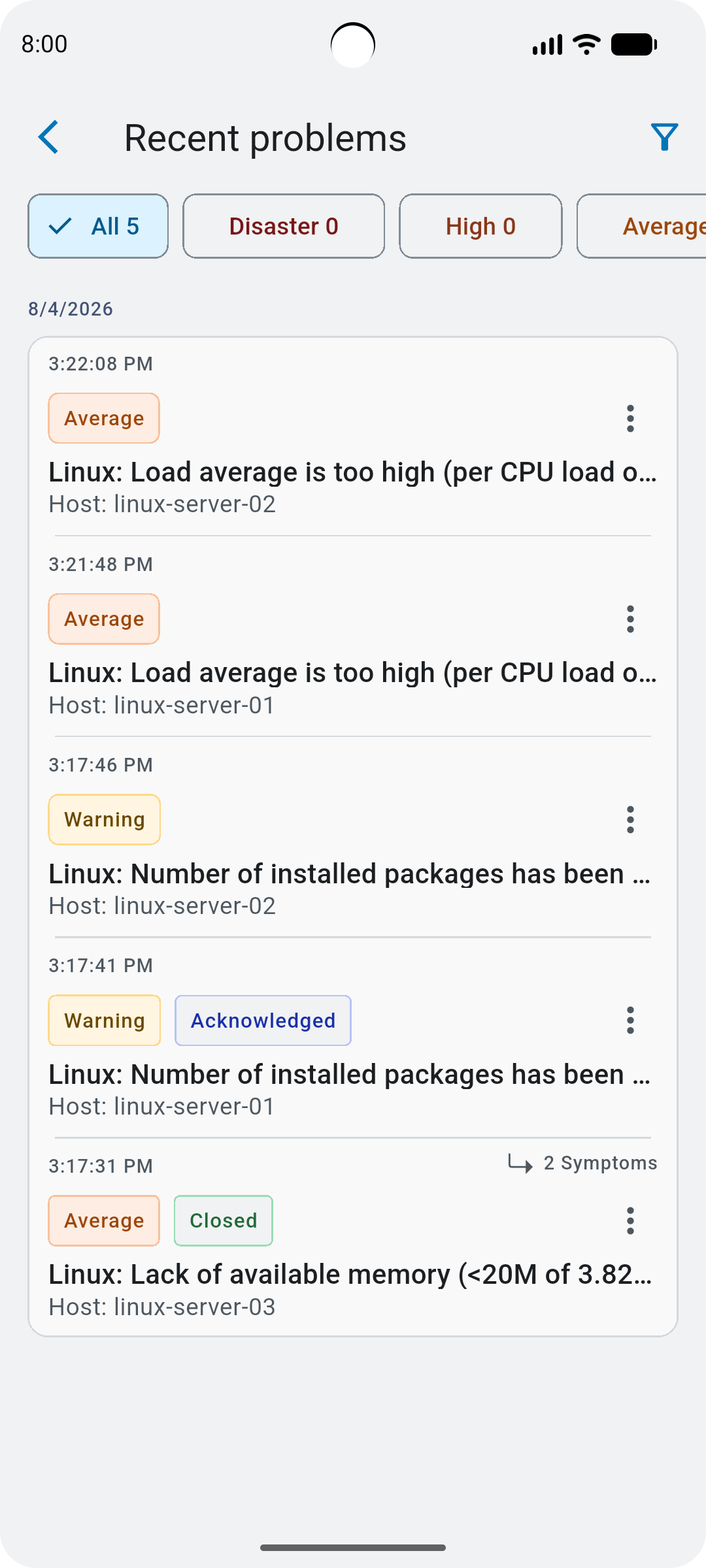
La pantalla Lista de problemas muestra los problemas que coinciden con el filtro (por ejemplo, Problemas recientes).
Toque el icono de filtro o una gravedad de problema para restringir aún más la lista.
Para cada problema, puede ver:
- La hora y la fecha de inicio.
- La gravedad, el nombre y el host.
- Si se confirmó o se cerró recientemente (se resolvió automáticamente o se cerró manualmente).
- Si tiene síntomas; toque para ver la lista de problemas de síntomas.
Toque un problema para abrir la pantalla Detalles del problema.
Toque el menú de tres puntos para confirmar rápidamente el problema o suprimirlo durante el tiempo que elija.
Detalles del problema
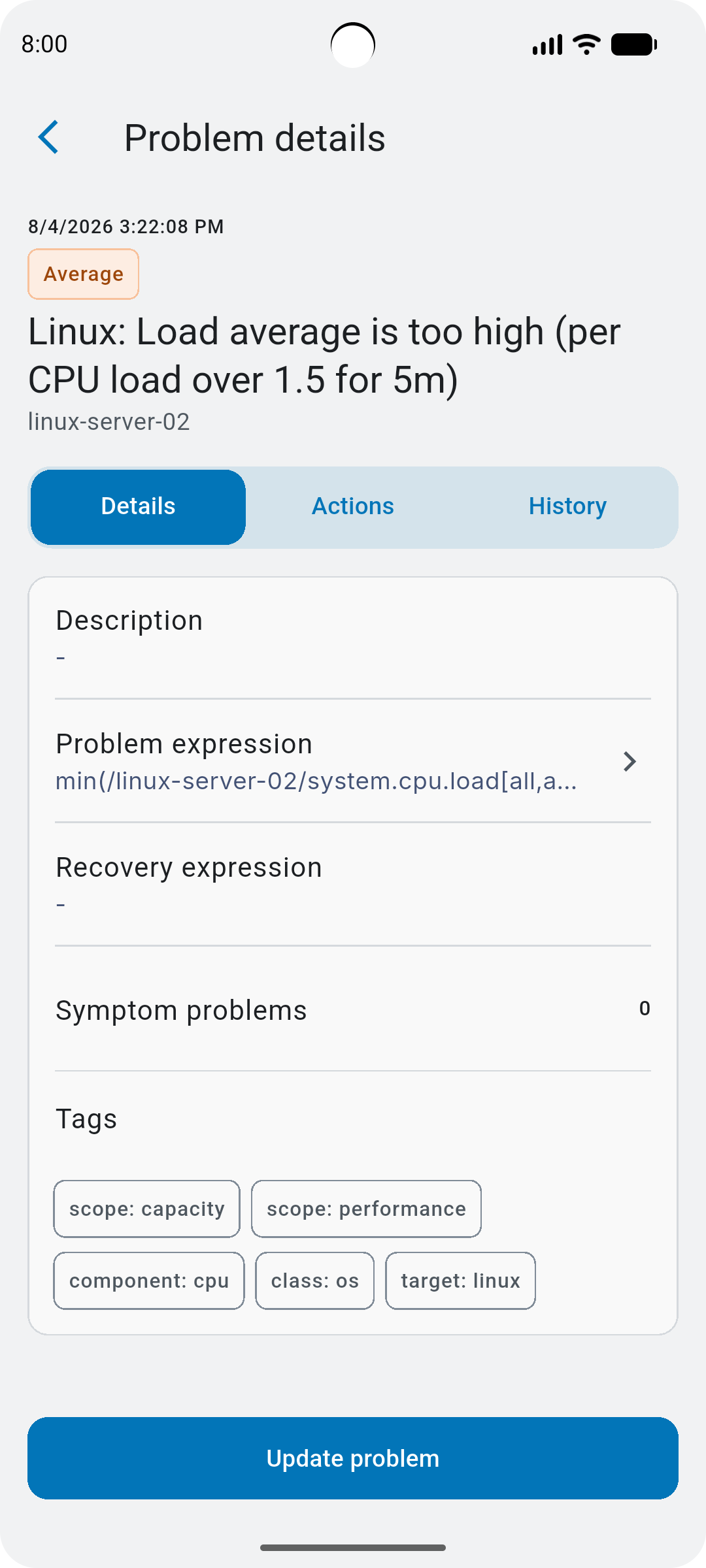
La pantalla Detalles del problema muestra los detalles, las acciones y el historial del problema.
- Pestaña Detalles: muestra la descripción del problema, las expresiones, los problemas sintomáticos (pulse para ver la lista de problemas) y las etiquetas.
- Pestaña Acciones: muestra la cronología del problema: cuándo comenzó o se reconoció, si se envió una notificación y otras acciones.
- Pestaña Historial: muestra la antigüedad, la duración y el tiempo de recuperación del problema (o
–si el problema continúa).
Pulse Actualizar problema para actualizar el problema.
Actualizar problema
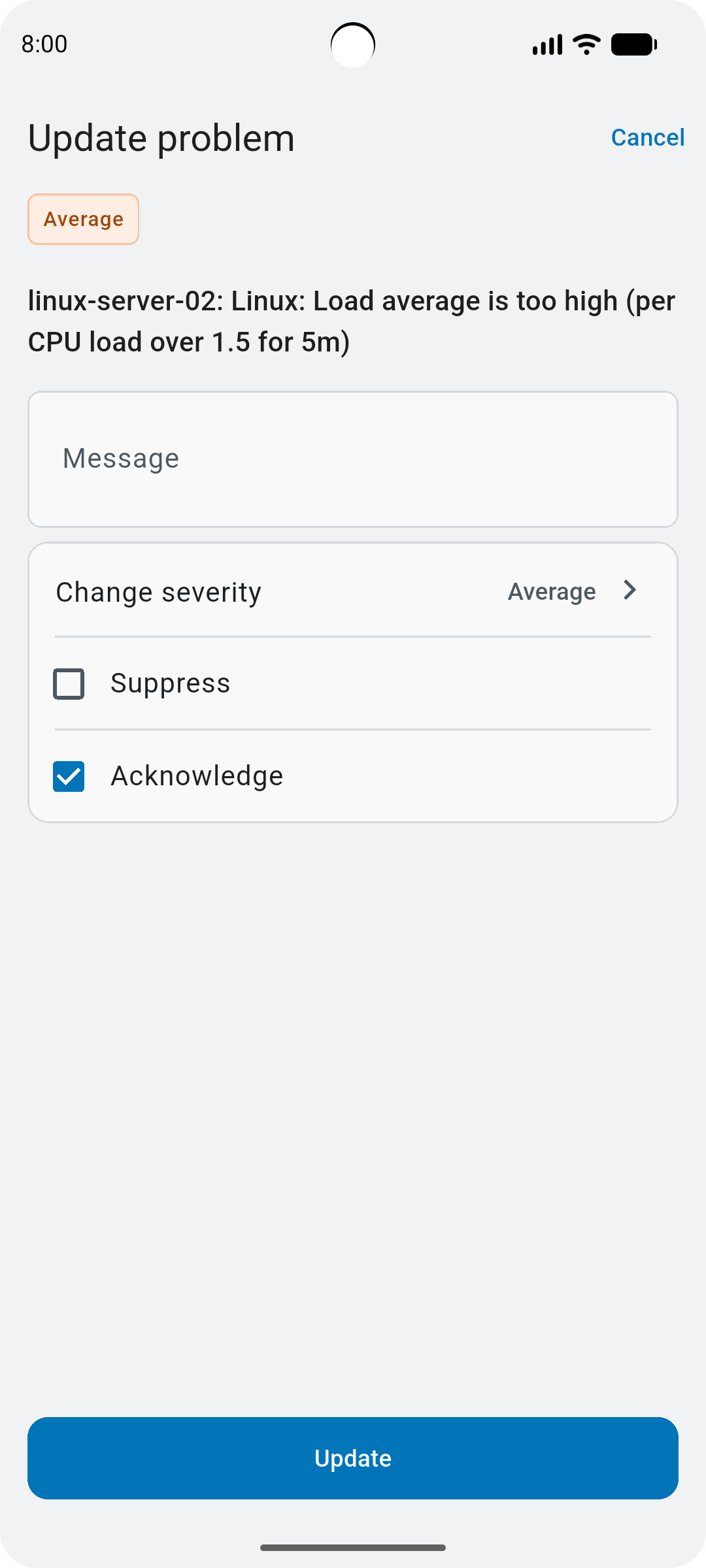
La pantalla Actualizar problema permite actualizar un problema:
- Añadir un mensaje.
- Cambiar la gravedad del problema.
- Suprimir el problema durante el tiempo que elija.
- Confirmar o cancelar la confirmación del problema.
- Cerrar el problema.
Pulse Actualizar para guardar los cambios.
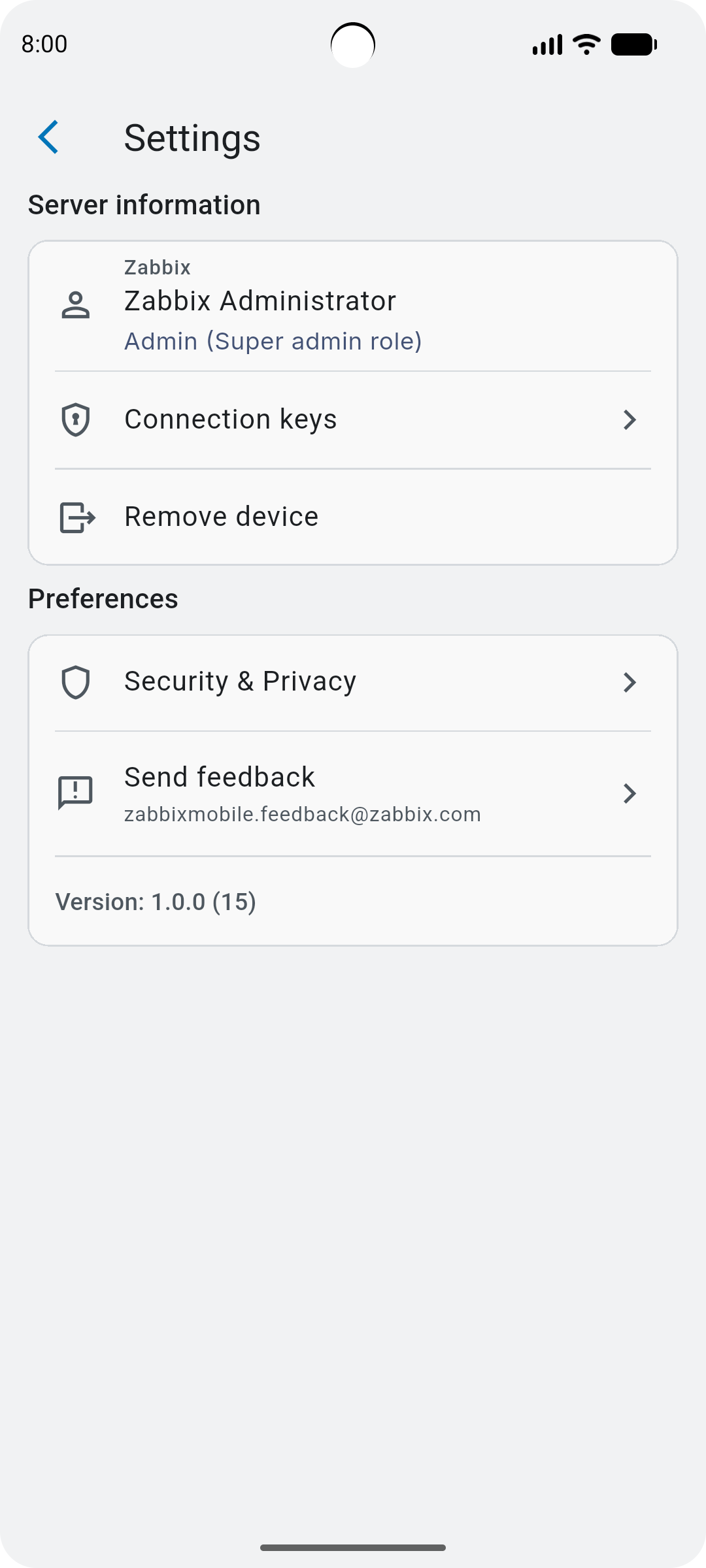
Configuración
La pantalla Configuración permite acceder a la configuración de la aplicación. Contiene:
- Nombre del server de Zabbix (o Zabbix, si no se configuró durante la instalación de la interfaz web de Zabbix).
- Nombre, tipo y rol del usuario al que se añadió el dispositivo móvil.
- Claves de conexión: abrir para ver y copiar el ID del server, el ID del dispositivo y otros detalles.
- Eliminar dispositivo: tocar para eliminar el dispositivo móvil de Zabbix.
- Seguridad y privacidad: abrir para activar el bloqueo de la aplicación y gestionar el uso compartido de datos de diagnóstico.
- Enviar comentarios: abrir para enviar comentarios a Zabbix.
- Versión de la aplicación.