
Event processing
Overview
In the Data collection > Event processing section users can configure and maintain:
- Complex event processing rules (CEP rules)
- Global event correlation rules (deprecated)
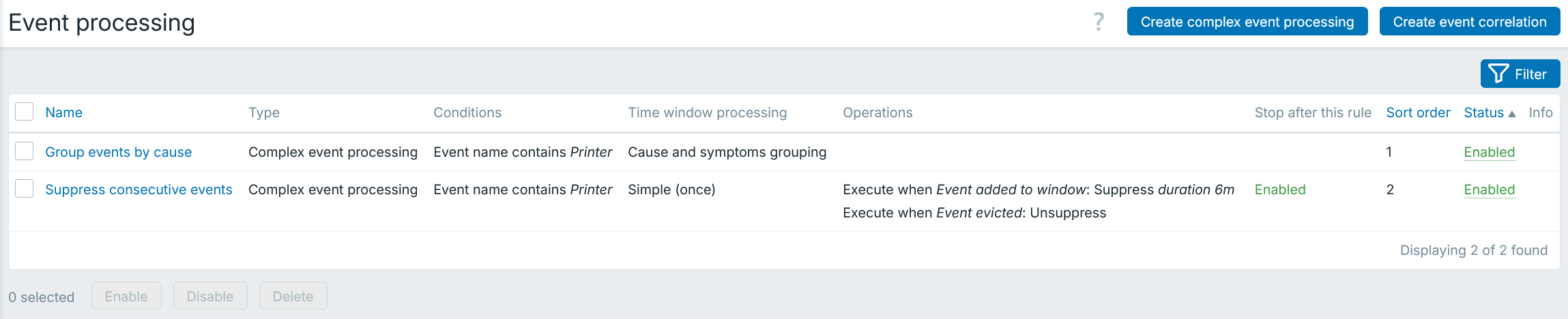
Displayed data:
| Column | Description |
|---|---|
| Name | Name of the rule. Clicking the name opens the rule configuration form - for CEP rule or global correlation rule respectively. |
| Type | Type of the rule - Complex event processing or Correlation. |
| Conditions | Rule conditions are displayed. |
| Time window processing | Time window type is displayed. |
| Operations | Rule operations are displayed. |
| Stop after this rule | Stop execution after this rule - Enabled or Disabled. |
| Sort order | Sort order of the CEP rule. |
| Status | Rule status is displayed - Enabled or Disabled. By clicking the status you can change it. |
| Info | If everything is working correctly, no icon is displayed in this column. In case of errors, a square icon with the letter "i" is displayed. Hover over the icon to see a tooltip with the error description. |
To configure a new CEP rule, click the Create complex event processing button in the upper-right corner.
To configure a new correlation rule, click the Create event correlation button in the upper-right corner.
Mass editing options
Buttons below the list offer some mass-editing options:
- Enable - change the rule status to Enabled
- Disable - change the rule status to Disabled
- Delete - delete the rules
To use these options, mark the checkboxes before the respective rules, then click the required button.
Using filter
You can use the filter to display only the rules you are interested in. For better search performance, data is searched with macros unresolved.
The Filter link is available above the list of CEP/correlation rules. If you click it, a filter becomes available where you can filter rules by name and status.
