
Dispositivos
Esta sección permite a los superadministradores gestionar los dispositivos móviles que se utilizarán con la aplicación móvil de Zabbix.
Esta sección se muestra si EnableMobileDevices está habilitado.
Para añadir un dispositivo:
- Haga clic en Añadir dispositivo.
- Seleccione un usuario y, a continuación, haga clic en Añadir. El usuario debe tener habilitado el acceso a los dispositivos.
- Aparecerá un código QR. El usuario debe escanear este código en su aplicación móvil de Zabbix.
Al añadir un dispositivo para un usuario, Zabbix también añade el tipo de medio de notificaciones push a los medios del usuario. Al eliminar el dispositivo, también se eliminan esos medios del usuario. Si tiene configurados varios tipos de medios de notificaciones push, Zabbix añade el que está habilitado y aparece primero alfabéticamente.
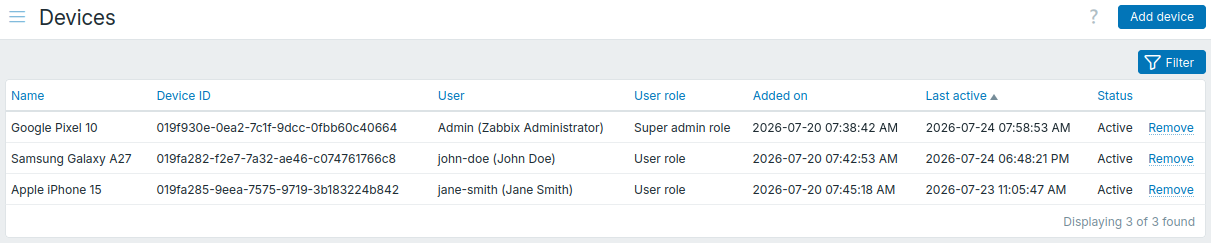
Los dispositivos añadidos aparecen en una lista que puede filtrar.
También puede eliminar dispositivos. Al eliminar un dispositivo, sus credenciales de acceso se revocan y eliminan de Zabbix, tras lo cual ya no podrá acceder a Zabbix.
La lista muestra estos detalles:
| Column | Description |
|---|---|
| Name | Nombre del dispositivo. |
| Device ID | ID del dispositivo. |
| User | Usuario para el que se añadió el dispositivo, o Usuario inaccesible si este usuario ha sido eliminado. |
| User role | Rol de usuario. |
| Added on | Fecha y hora en que se añadió el dispositivo. |
| Last active | Fecha y hora en que el dispositivo estuvo activo por última vez. |
| Status | Estado del dispositivo: Nuevo: el dispositivo se añadió sin escanear el código QR y deberá añadirse de nuevo. Nuevo (token caducado): el dispositivo se añadió sin escanear el código QR y el token del código QR ha caducado; el dispositivo deberá añadirse de nuevo. Activo: el dispositivo se añadió, se escaneó el código QR y puede utilizar la aplicación móvil de Zabbix. Sin asignar: el dispositivo se añadió, pero su usuario fue eliminado y no puede utilizar la aplicación móvil de Zabbix. |
Los usuarios con permisos suficientes también pueden gestionar sus propios dispositivos en Configuración del usuario > Dispositivos.