
このページで
監査ログ
概要
Zabbix Cloud では、監査ログにユーザーおよびシステムのアクティビティが記録されます。
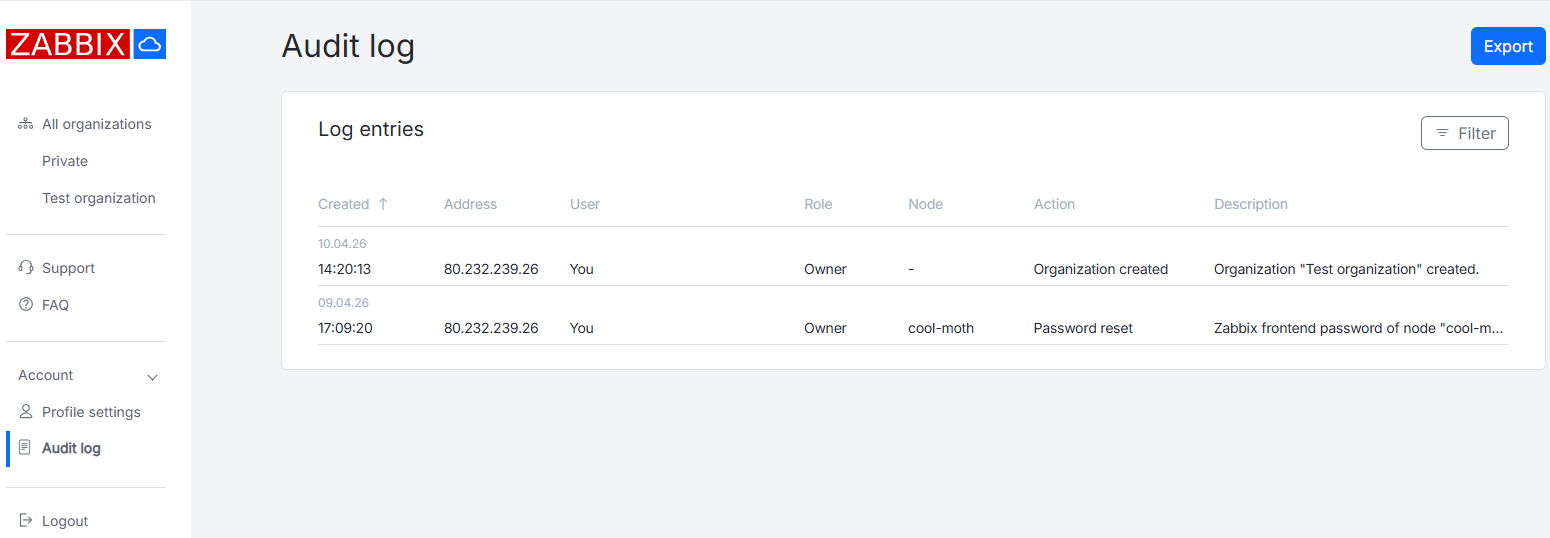
Zabbix Cloud アカウントにログインした後、アカウント > 監査ログ に移動して監査ログの記録を表示します。
ユーザーが利用できる監査ログエントリは、そのユーザーの組織ロールによって異なります。
監査ログレコードの表示
監査ログレコードはテーブルに表示されます。
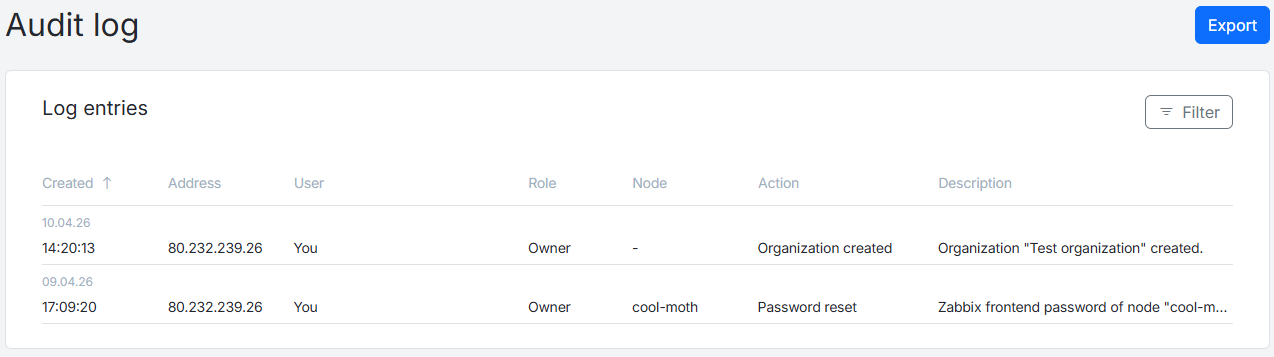
テーブルには次の情報が含まれます。
| 列 | 説明 |
|---|---|
| 作成日時 | ログエントリが作成された日時。表示される時刻は、アカウント > プロファイル設定 の ユーザーのタイムゾーン ドロップダウンで選択したユーザーのタイムゾーンに対応します。 |
| ユーザー | アクションを実行した組織ユーザーの名前。 |
| ロール | アクションを実行したユーザーのロール。 |
| ノード | アクションに関連するノードの名前。 |
| アクション | 実行されたアクションの名前。 |
| 説明 | 実行されたアクションの説明。 |
列名をクリックすると、レコードを昇順または降順で並べ替えることができます。
フィルターされた監査ログレコードは、エクスポート ボタンを使用して .csv 形式でエクスポートできます。
フィルターの使用
Filter ボタンを使用してフィルターを開きます。
1つ以上のフィルターパラメータを選択した後、Apply をクリックすると、フィルターされた結果が表示されます。
フィルターをクリアするには、Clear all をクリックします。

1つ以上のパラメータでレコードをフィルターできます。
使用可能なフィルターパラメータは次のとおりです。
| パラメータ | 説明 |
|---|---|
| Organization | すべての組織または特定の組織を選択します。 |
| IP Address | IPアドレスを指定します。 |
| ユーザーに関連付けられたメールアドレスを指定します。 | |
| User role | すべてのロールまたは特定のロール(Owner、Admin、User)を選択します。 |
| Node name | すべてのノードまたは特定のノードを選択します。 |
| Action | 特定のアクションタイプを選択します。 |
監査ログには、次のアクションが記録されます。
- ノードを作成
- ノードを削除
- ノードをアップグレード
- ノードバージョンを更新
- パスワードをリセット
- メンテナンスを更新
- 履歴設定を更新
- ノードの有効期限を延長
- プロキシ設定を更新
- バックアップを作成
- バックアップを削除
- バックアップを復元
- バックアップを更新
- アクセスフィルターを追加
- アクセスフィルターを更新
- アクセスフィルターを削除
- 暗号化を有効化
- 暗号化を無効化
- サブスクリプションをキャンセル
- サブスクリプションを更新
- サブスクリプションの支払いに失敗
- 支払いに確認が必要
- 組織を作成
- 組織を削除
- 管理者を招待
- ユーザーを招待
- 管理者が参加
- ユーザーが参加
- 管理者を組織から削除
- ユーザーを組織から削除
- ノードを組織に追加
- ノードを組織から削除
- ノードへのアクセスを許可
- ノードへのアクセスを取り消し
- ユーザー設定を更新
- 支払いを作成
- 支払いを完了
- 支払いに失敗
- VAT請求を適用
- VATの検証に失敗
- 請求情報を更新
- 支払い方法を更新
- 支払い方法を削除
- 前払いノードを作成
- 前払いノードを更新
- インシデントを開始
- インシデントを終了